Supported Apps
All apps support VLESS with WebSocket + TLS. Apps are available on Google Play and/or GitHub releases.
Your VLESS Link
Retrieve your VLESS connection link from the Hue VPN dashboard. Example format:
https://sub.huevpn.com/4853285291/sub/mmlwxrmn8ouhkemj
Setup: Hiddify
Hiddify Android is easy to use with built-in subscription management and auto server updates.
-
1Install Hiddify
-
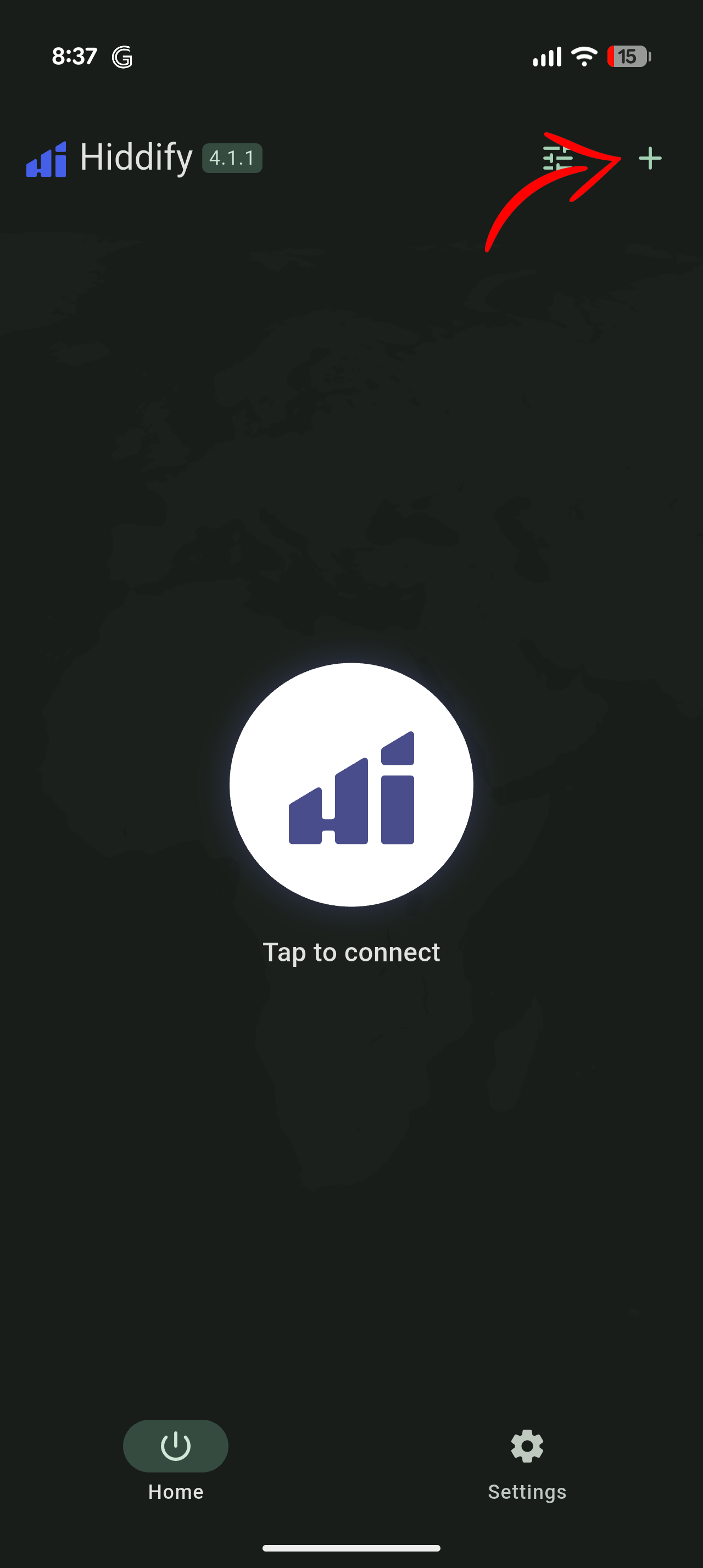
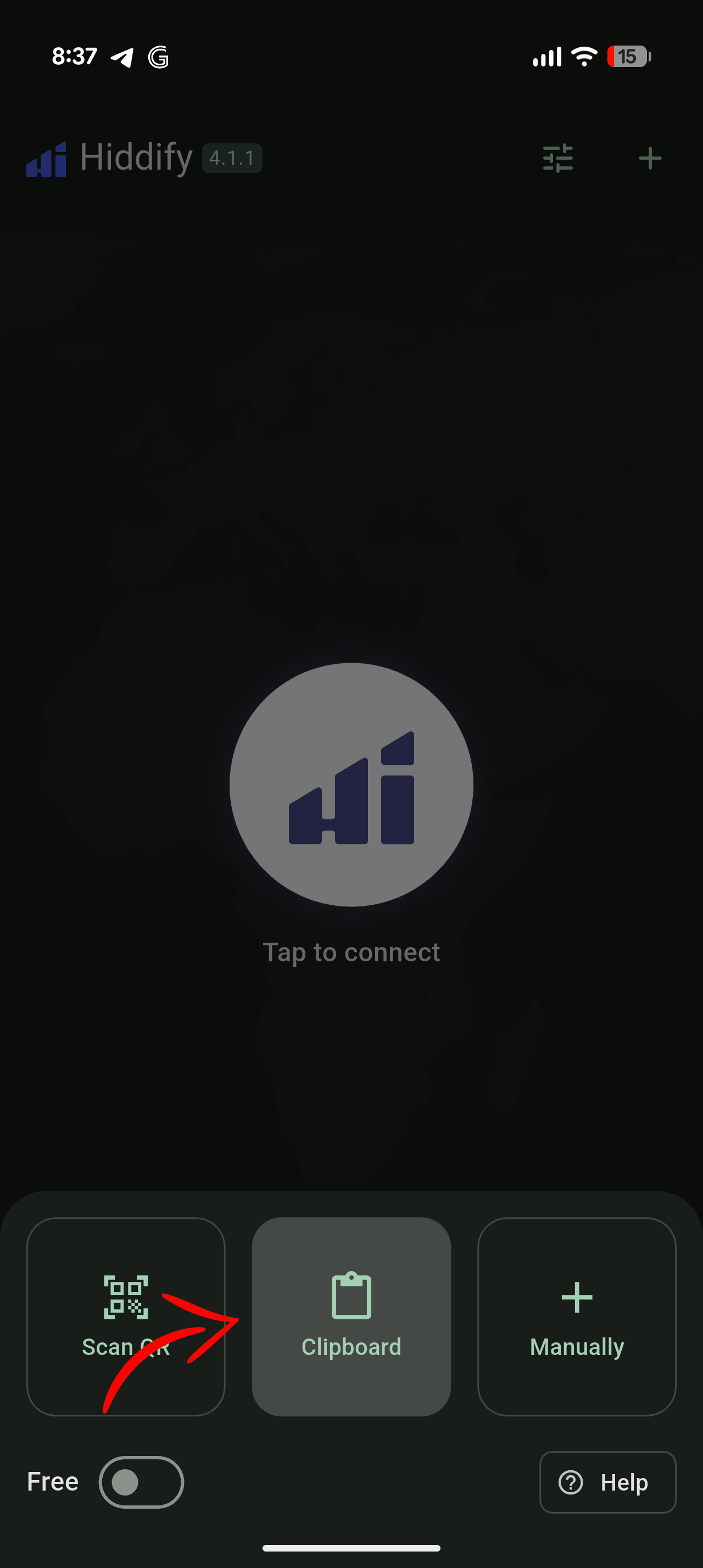
2Tap "Add Config" and choose import method
On the home screen, tap Add Config. Choose Paste Link, Scan QR, or Subscription URL.
-
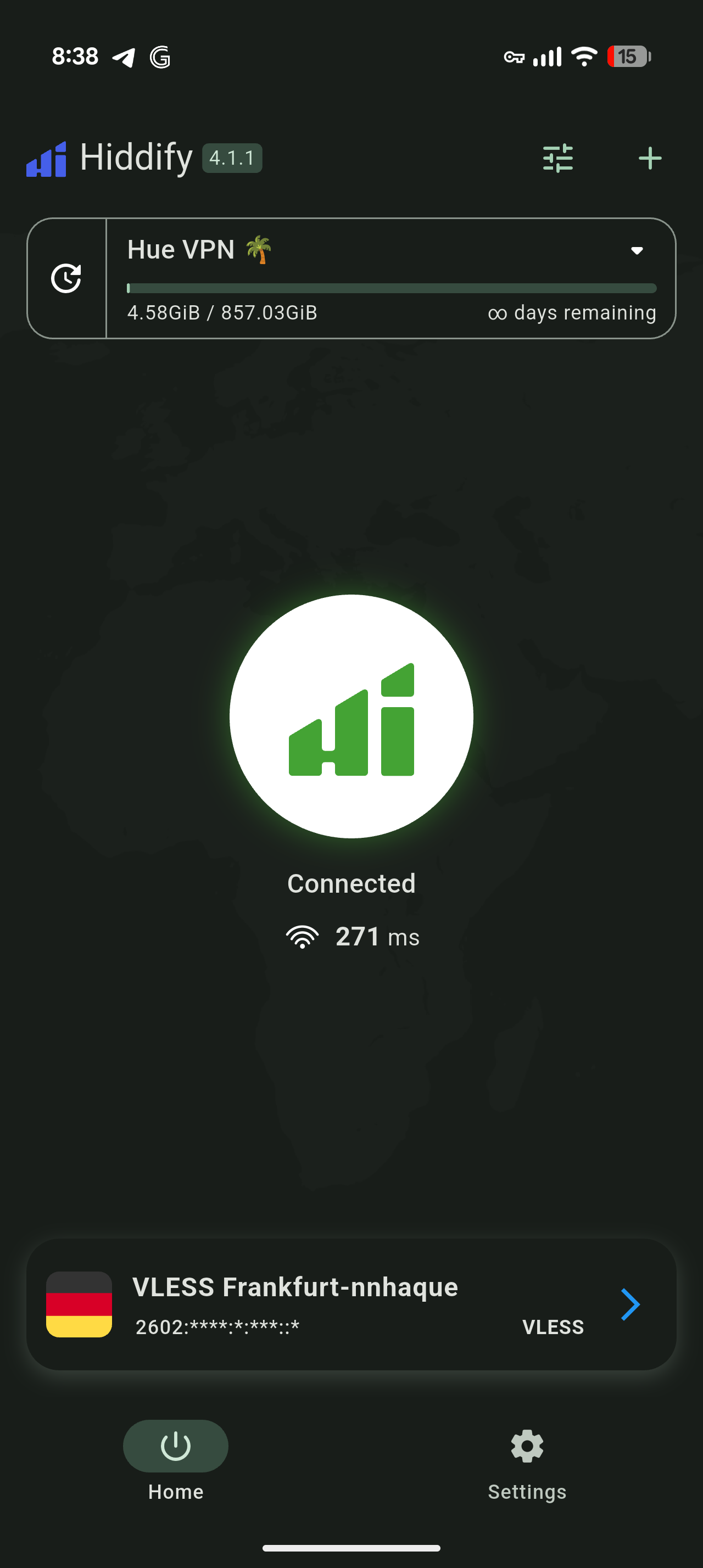
3Connect
Tap the Connect button. Accept VPN permission when prompted.
Setup: Happ
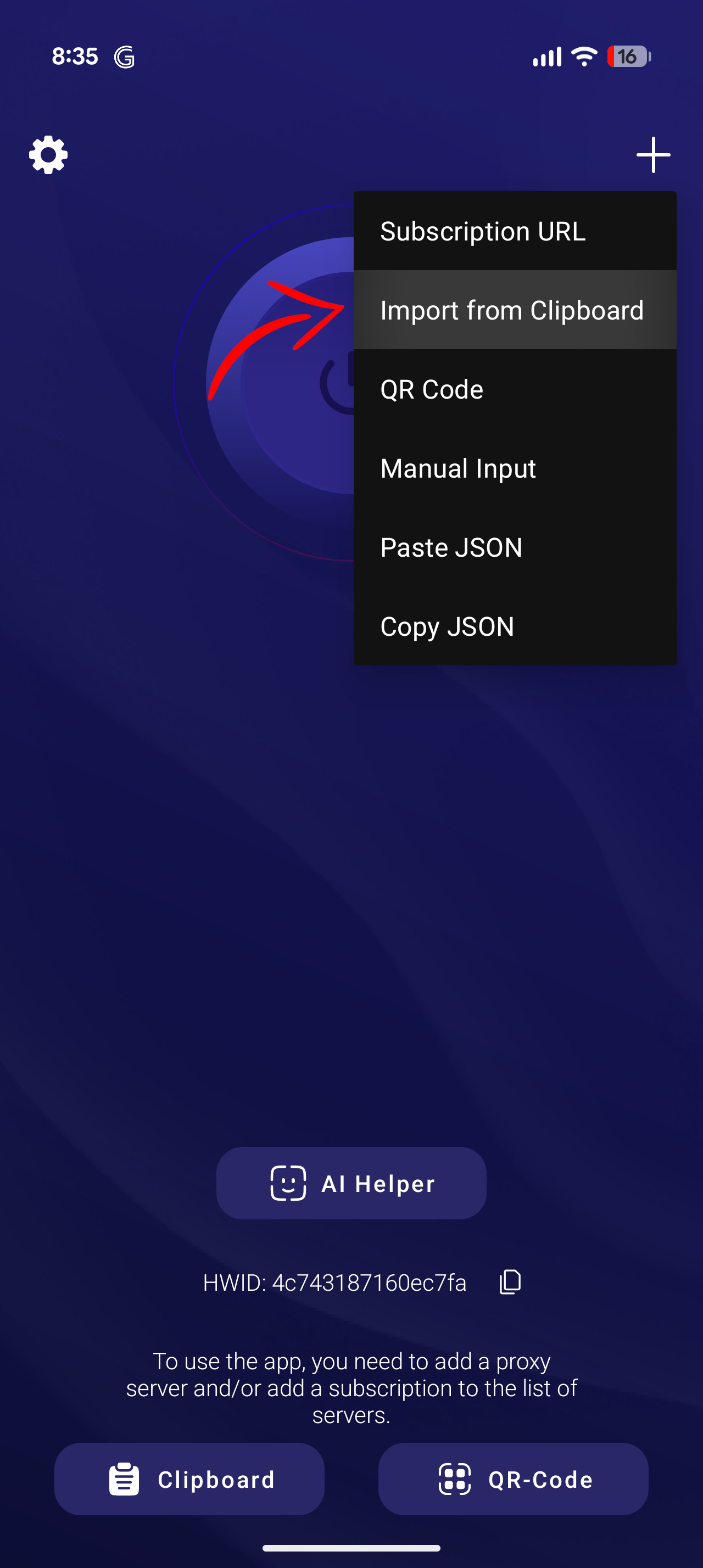
Happ keeps things simple with a clean Android interface optimised for quick connections.
-
1Download Happ
-
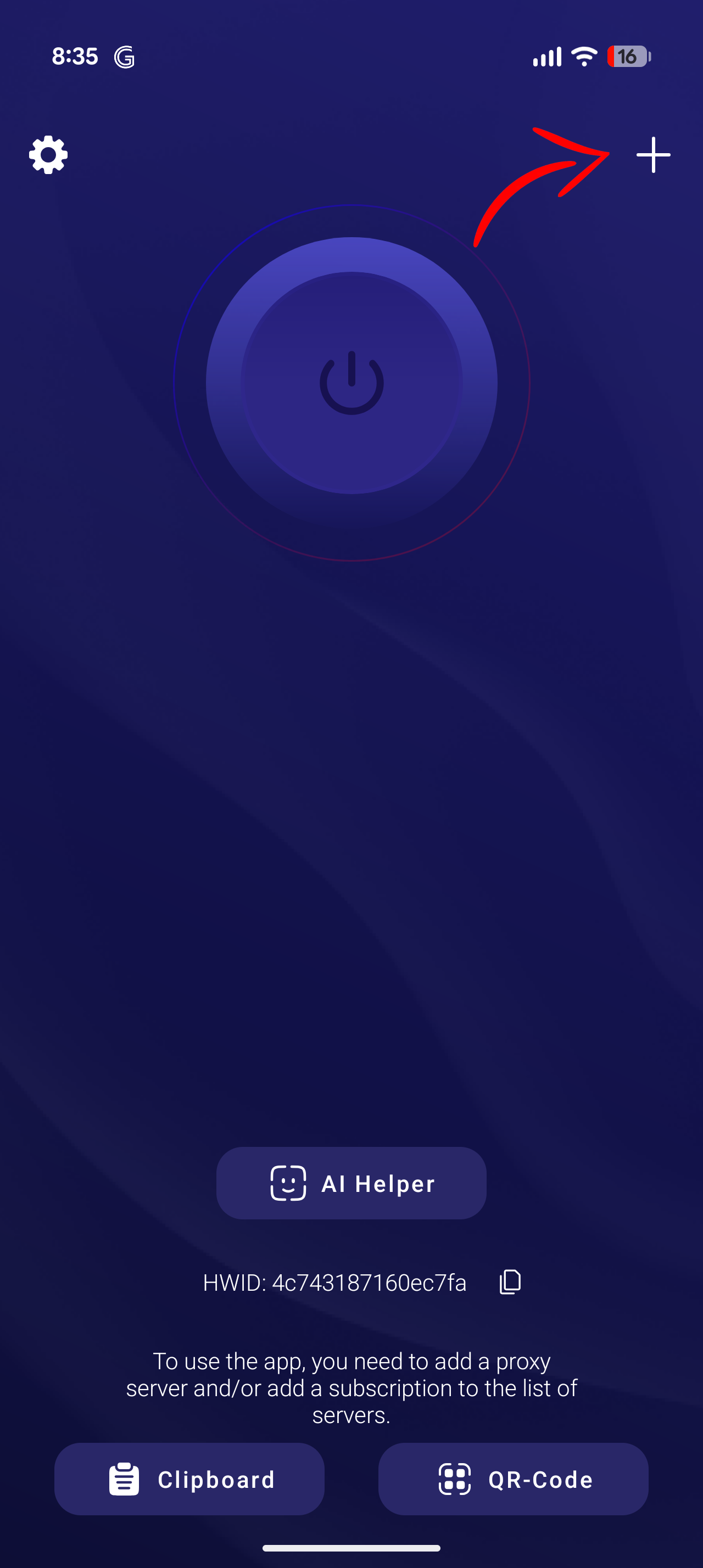
2Tap + and import your VLESS link
Open Happ, tap +, and paste your VLESS URL or scan the QR code from your dashboard.
-
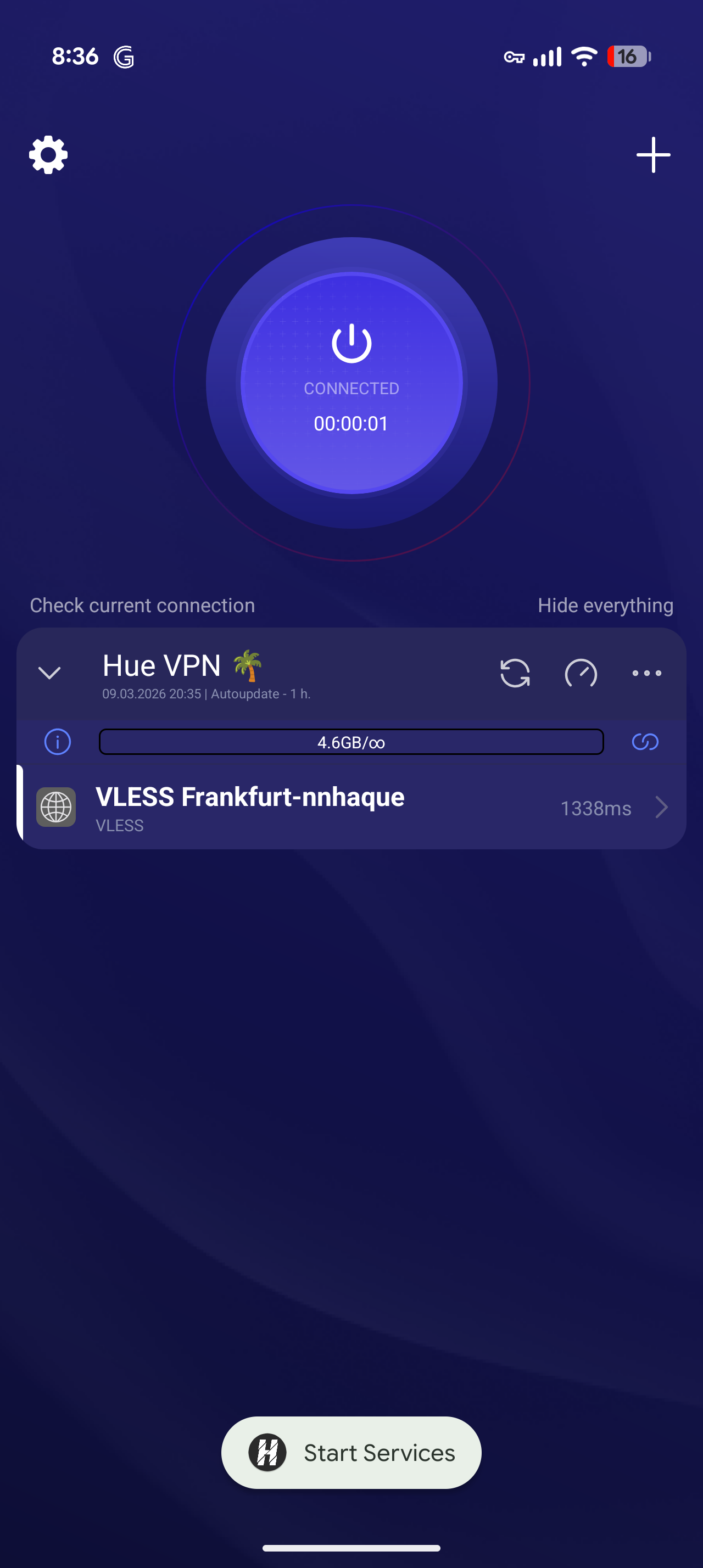
3Connect
Select the server and tap Connect. Accept the VPN permission prompt.
Setup: V2RayTun
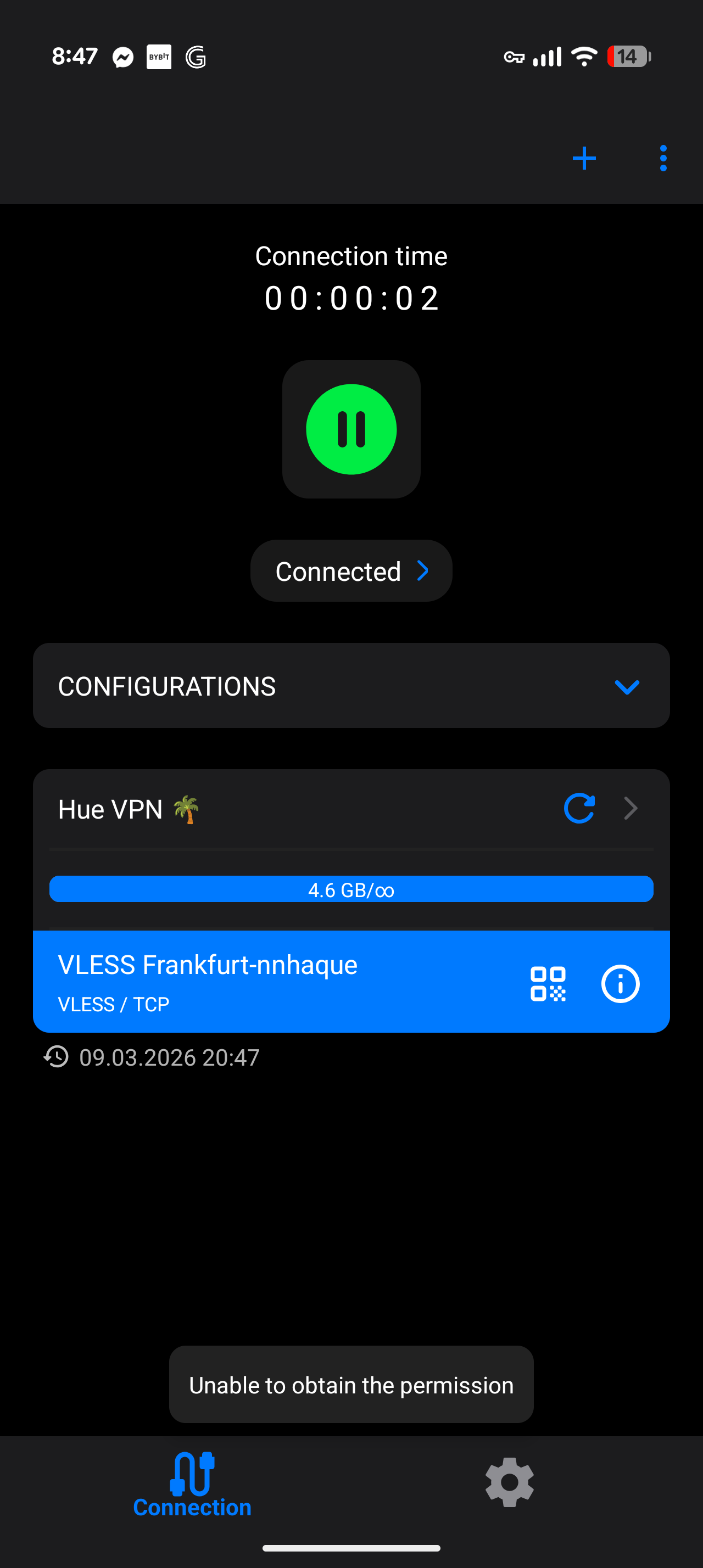
V2RayTun is a lightweight v2ray/Xray client for Android with native VLESS support and a clean, simple interface.
-
1Install V2RayTun from Google Play
-
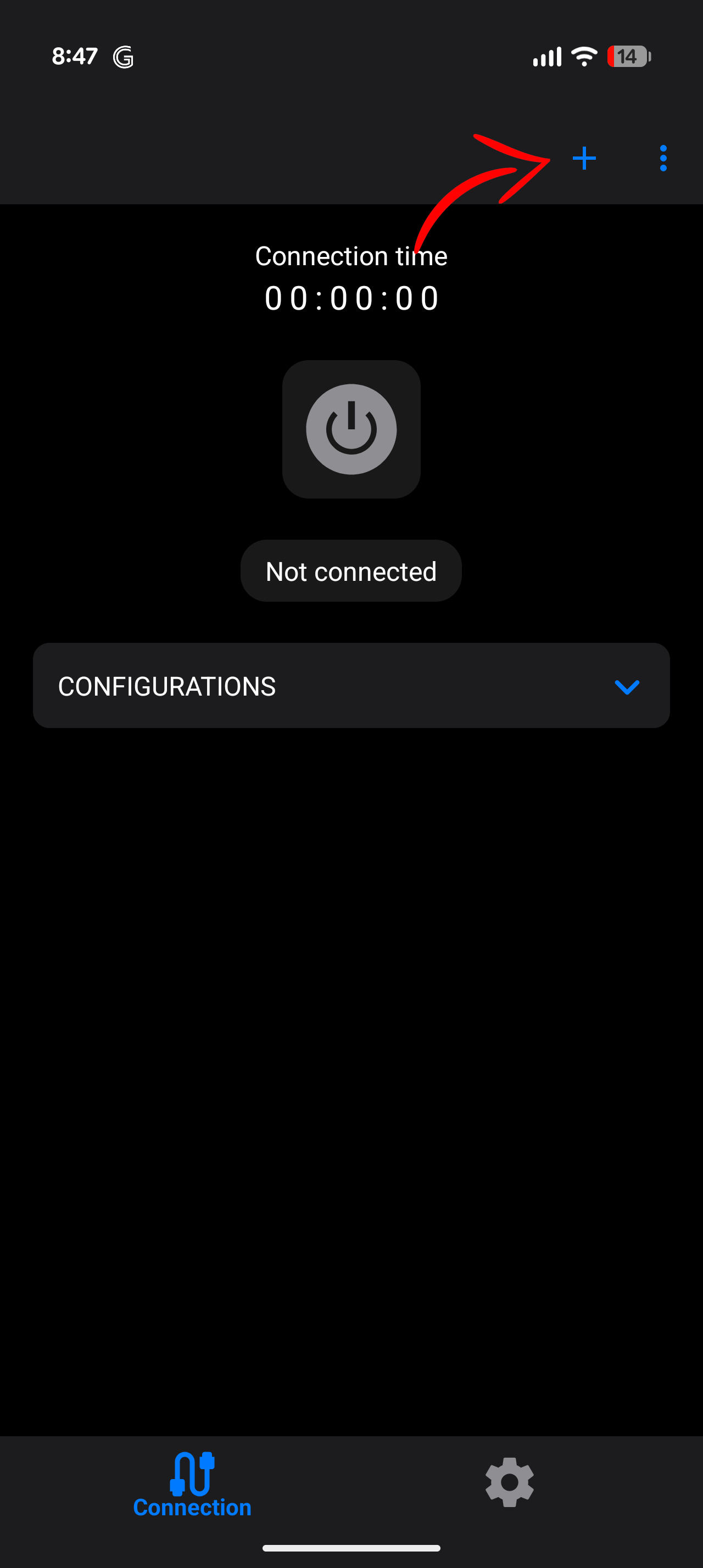
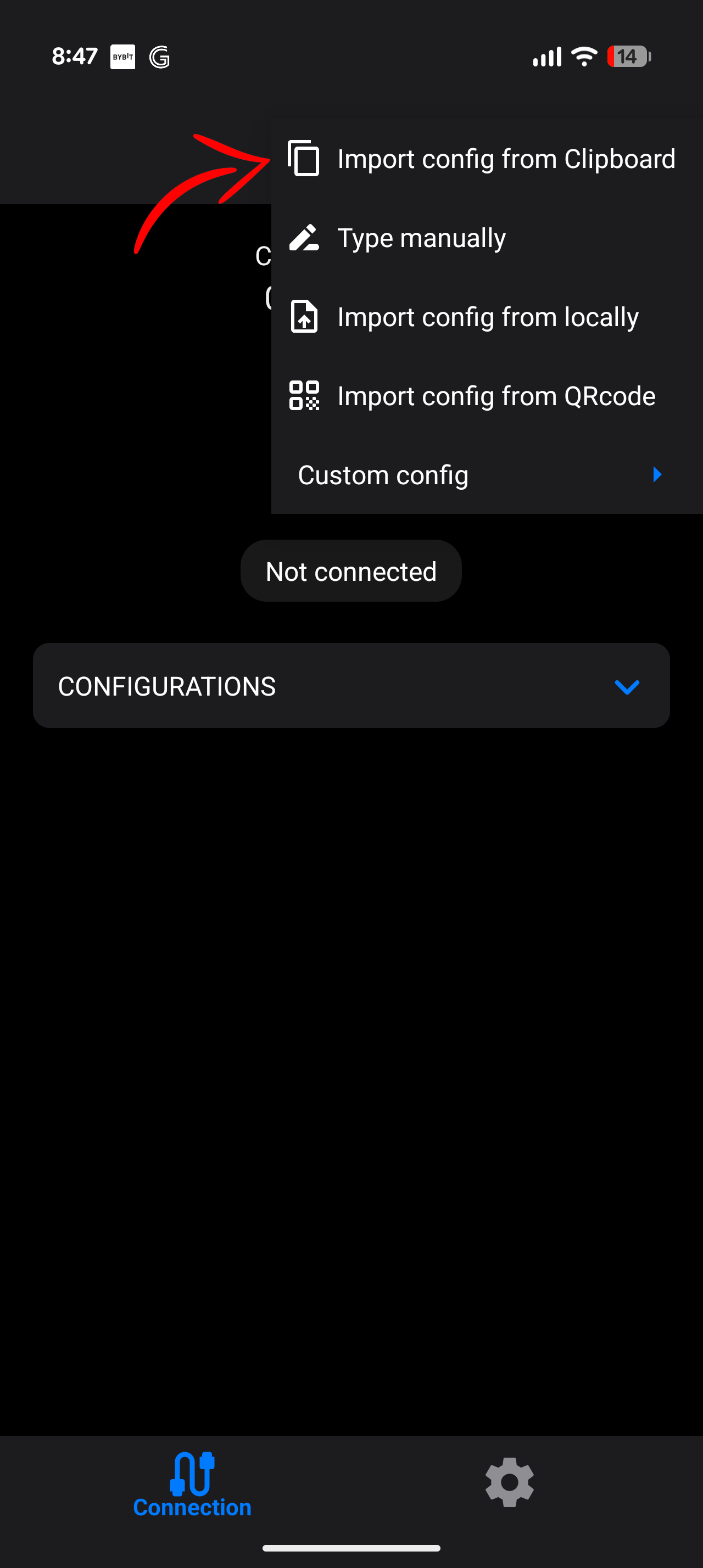
2Tap + and import your VLESS link
Open V2RayTun and tap the + icon. Select "Import from clipboard" (after copying your VLESS link) or "Scan QR code". The server will be added instantly.
-
3Select the server and connect
Tap the HueVPN server to select it, then tap the Connect button. Accept the VPN permission prompt when it appears.
-
4Verify connection
A key icon will appear in your Android notification bar when connected successfully.
Setup: V2Box
V2Box is a feature-rich v2ray client for Android with support for VLESS, VMESS, Trojan, and advanced routing rules.
-
1Install V2Box from Google Play
-
2Copy your VLESS link
Copy the full VLESS URL from your Hue VPN dashboard to your clipboard.
-
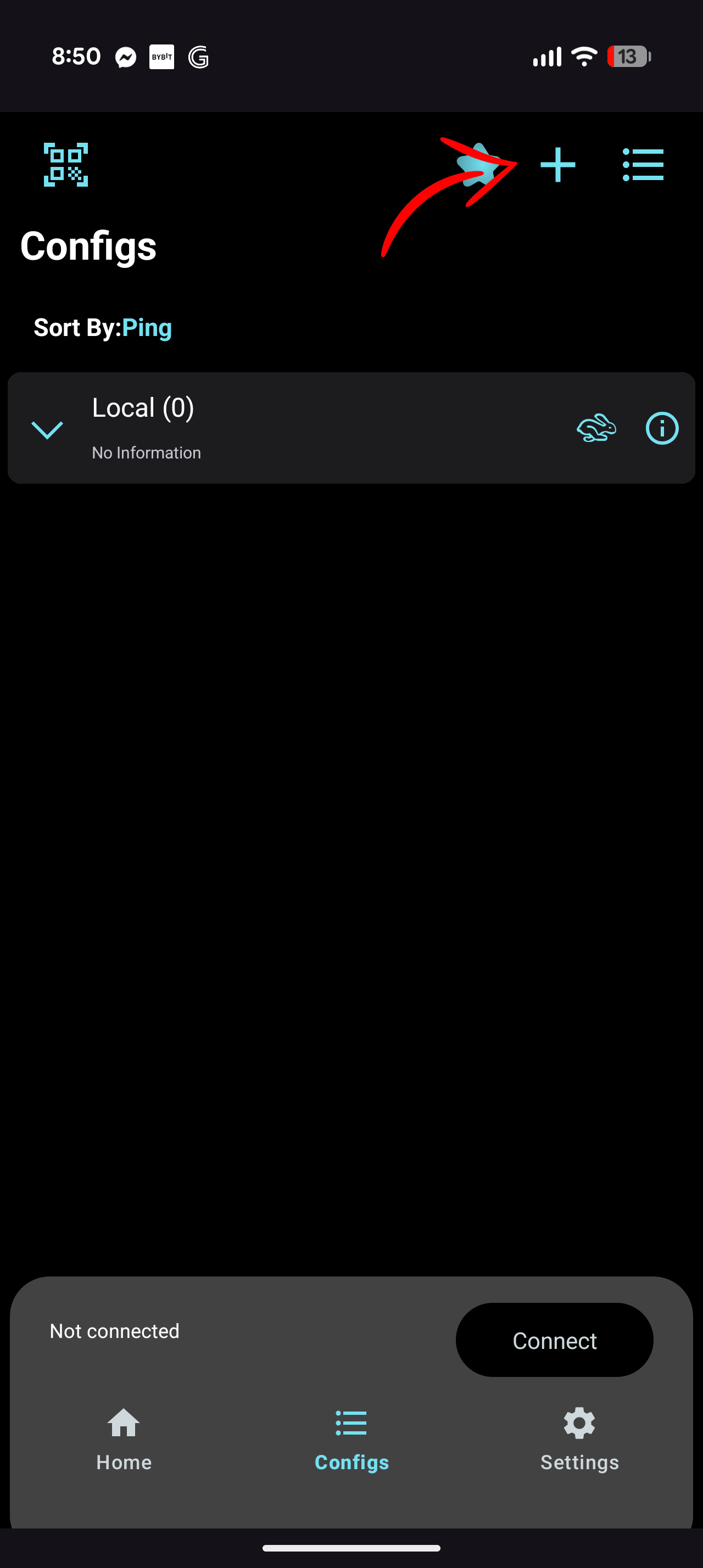
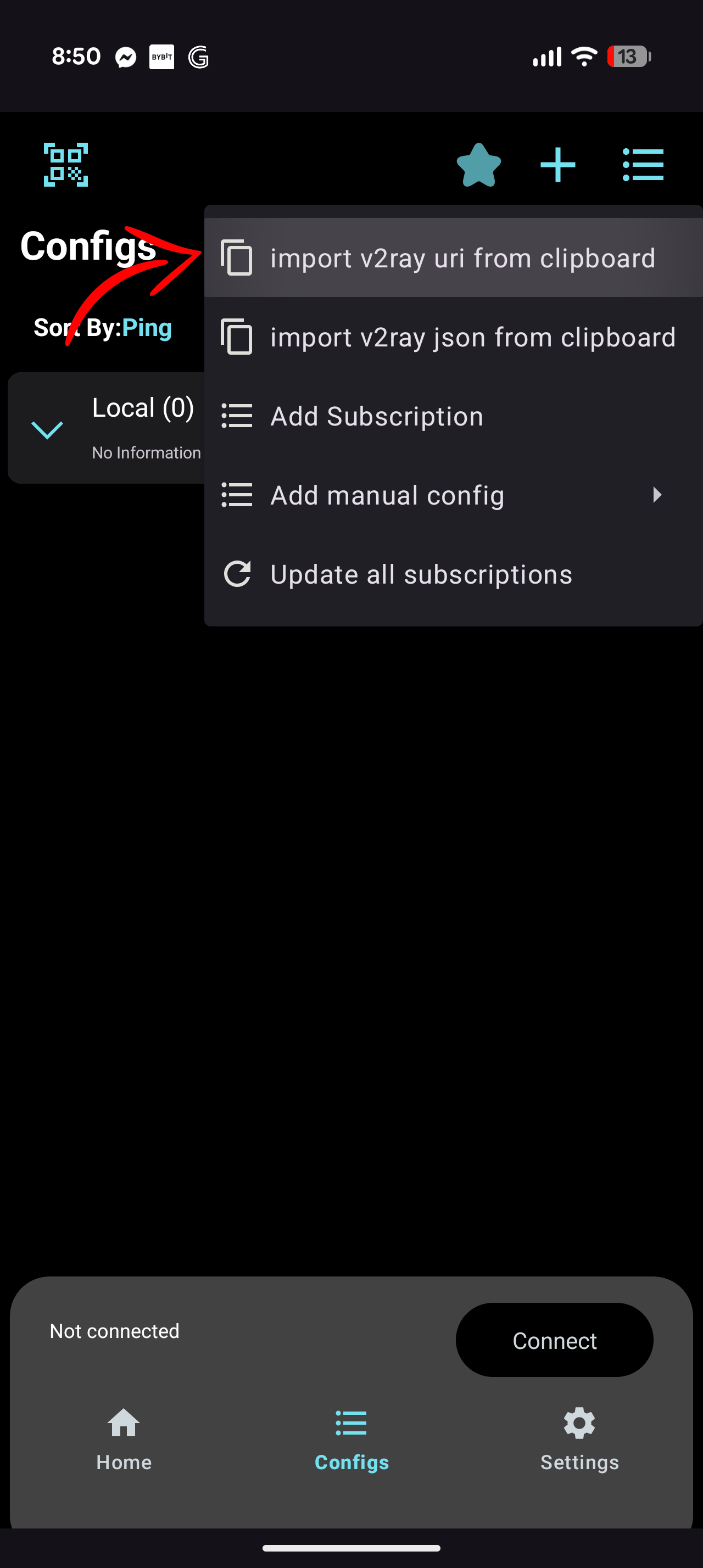
3Tap "Configs" → "+" → "Import from clipboard"
In V2Box, go to the Configs tab. Tap + and choose Import from clipboard or Import from URL. Paste your VLESS link and confirm.
-
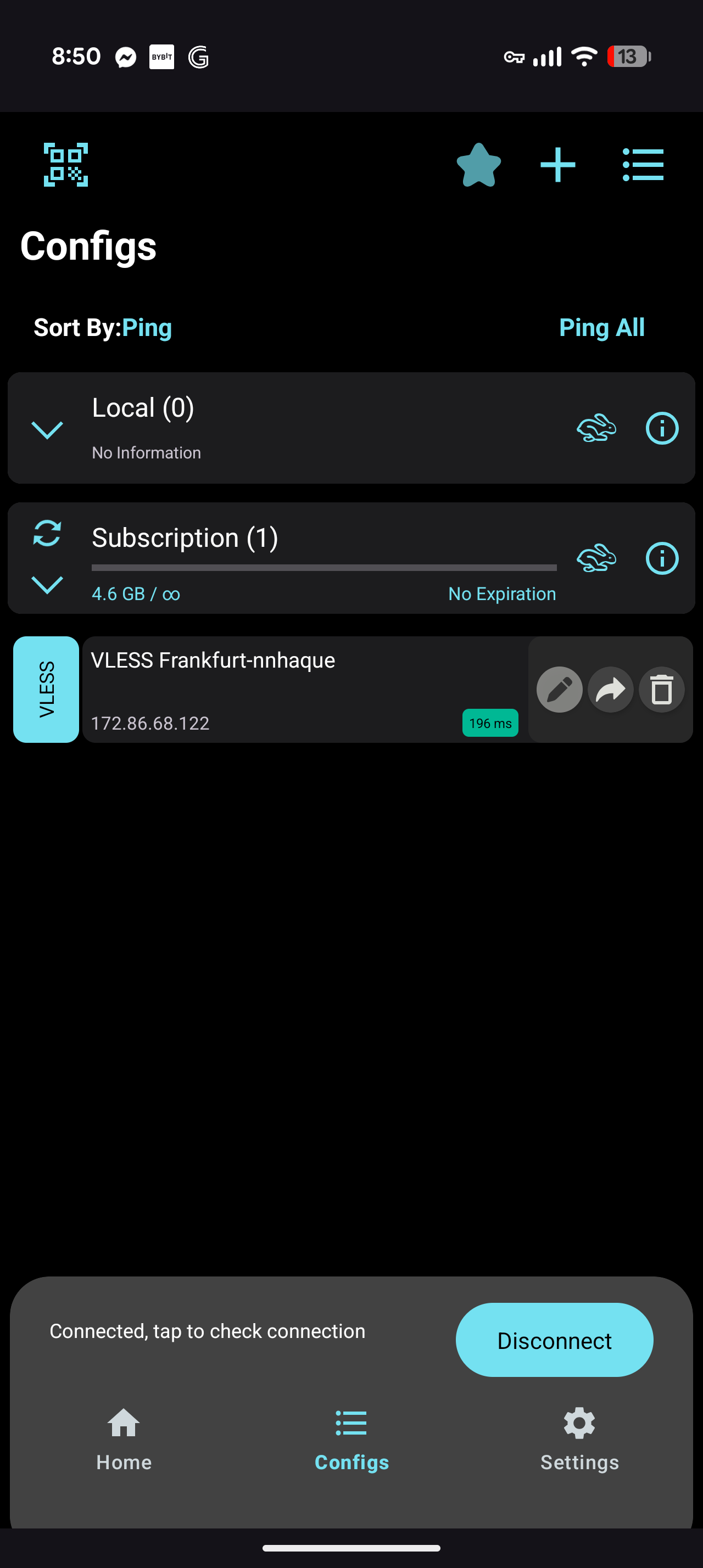
4Select the configuration and connect
Tap the imported configuration to select it, then hit the Connect button. Accept the VPN permission prompt when it appears.
Manual Configuration
For apps that don't support link import, enter these fields manually:
| Field | Value |
|---|---|
| Protocol | VLESS |
| Address | server.huevpn.com |
| Port | 443 |
| UUID | your-uuid-from-dashboard |
| Encryption | none |
| Transport | ws |
| WS Path | /vless |
| WS Host | server.huevpn.com |
| TLS | Enabled |
| SNI | server.huevpn.com |
| Fingerprint | chrome |