Supported Apps
All apps below support VLESS with WebSocket + TLS transport. Choose whichever you prefer — setup steps for each are provided below.
Your VLESS Link
The easiest way to connect is to copy your VLESS link from the Hue VPN dashboard and paste or scan it in your chosen app. The link below is an example showing the format:
https://sub.huevpn.com/4853285291/sub/mmlwxrmn8ouhkemj
Import via QR Code
Most apps let you scan a QR code to import your VLESS configuration instantly — no typing required.
- Open your app and tap Add server or the + button
- Choose Scan QR code or Import from QR
- Point your camera at the QR code from your dashboard
- The server will be added automatically
Setup: Streisand
Streisand is a polished, user-friendly proxy app ideal for beginners. It supports VLESS natively with a clean interface.
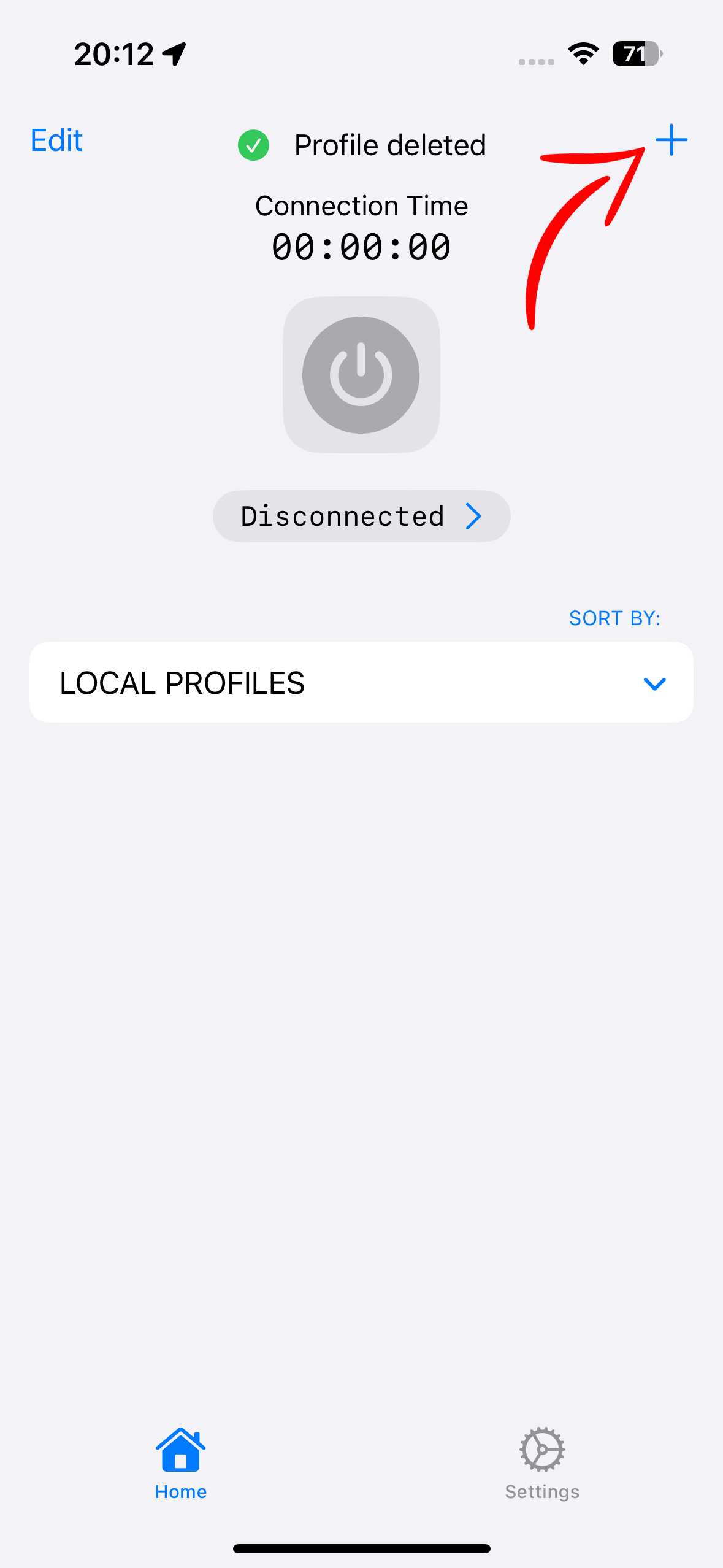
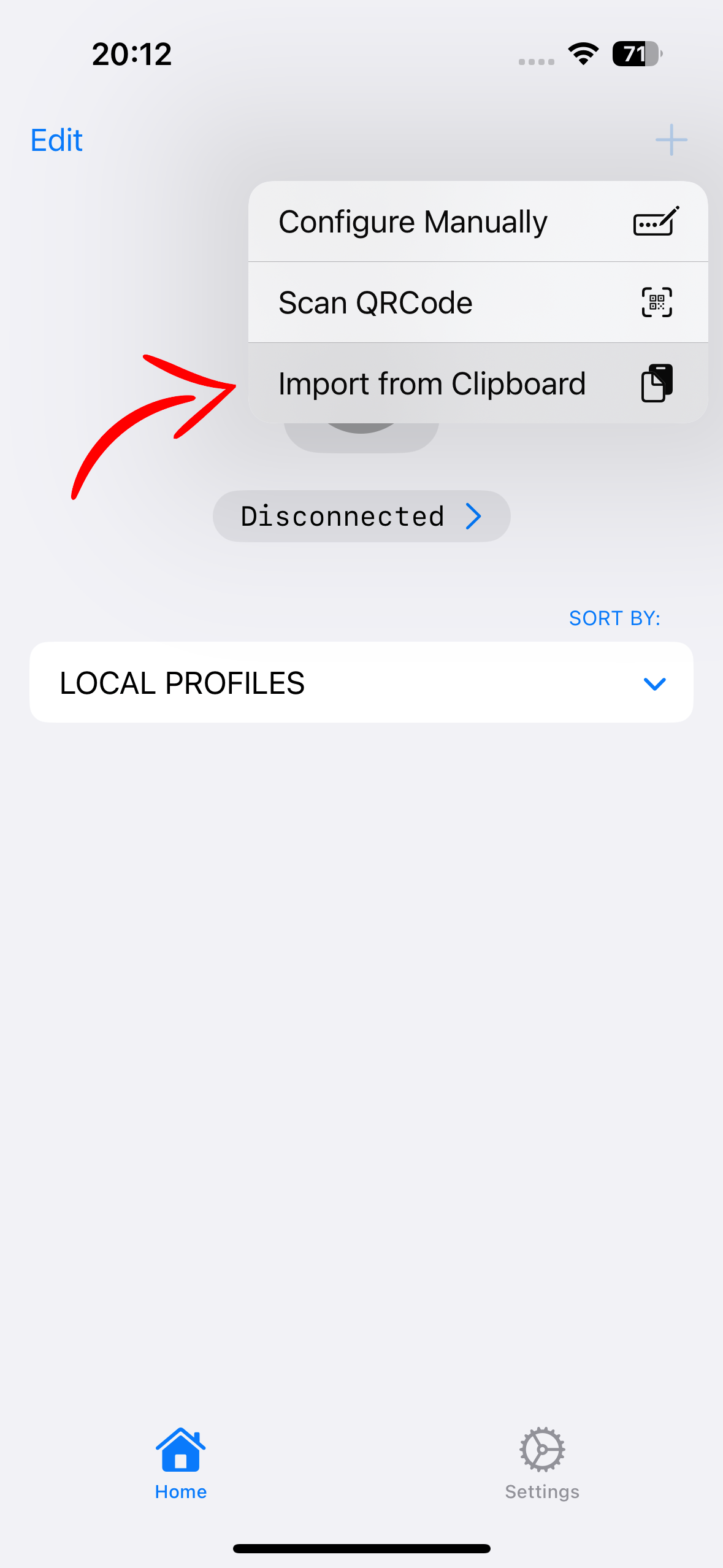
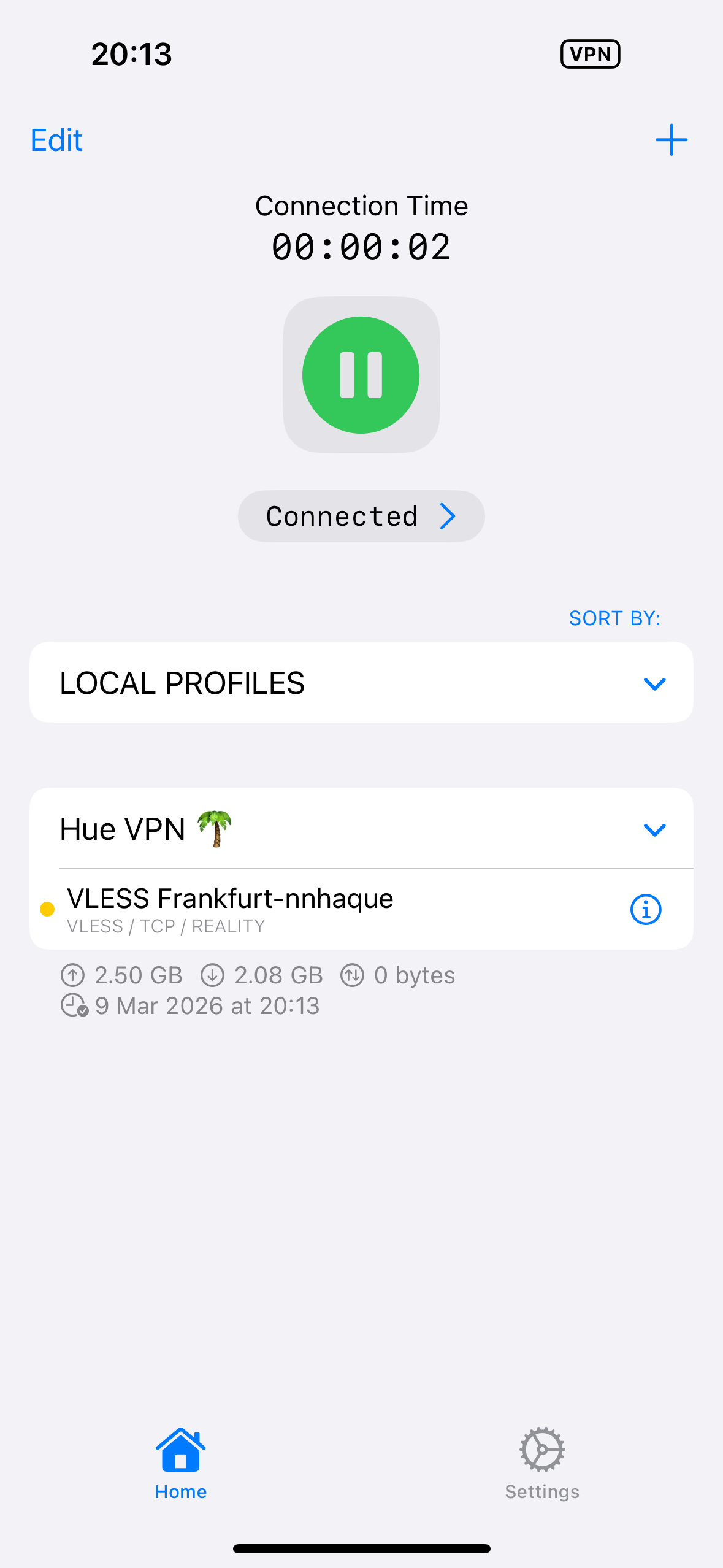
-
1Download Streisand from the App Store
Tap the button below to open the App Store listing, then tap Get to download.
🍎 Download on App Store -
2Open the app and tap the + button
Launch Streisand. You'll see a server list screen. Tap the + icon in the top-right corner to add a new server.
-
3Import your VLESS link
Select "Import from clipboard" (after copying your VLESS link) or "Scan QR code". Your server configuration will be loaded automatically.
-
4Allow VPN configuration
When prompted, tap Allow to let Streisand add a VPN configuration to iOS. Authenticate with Face ID or your passcode if required.
-
5Connect
Tap the Connect button (or the toggle) on your newly added server. The VPN icon will appear in your iOS status bar when connected.
Setup: v2RayTun
v2RayTun is a lightweight yet capable v2ray/Xray client for iOS with native VLESS support and a minimal interface.
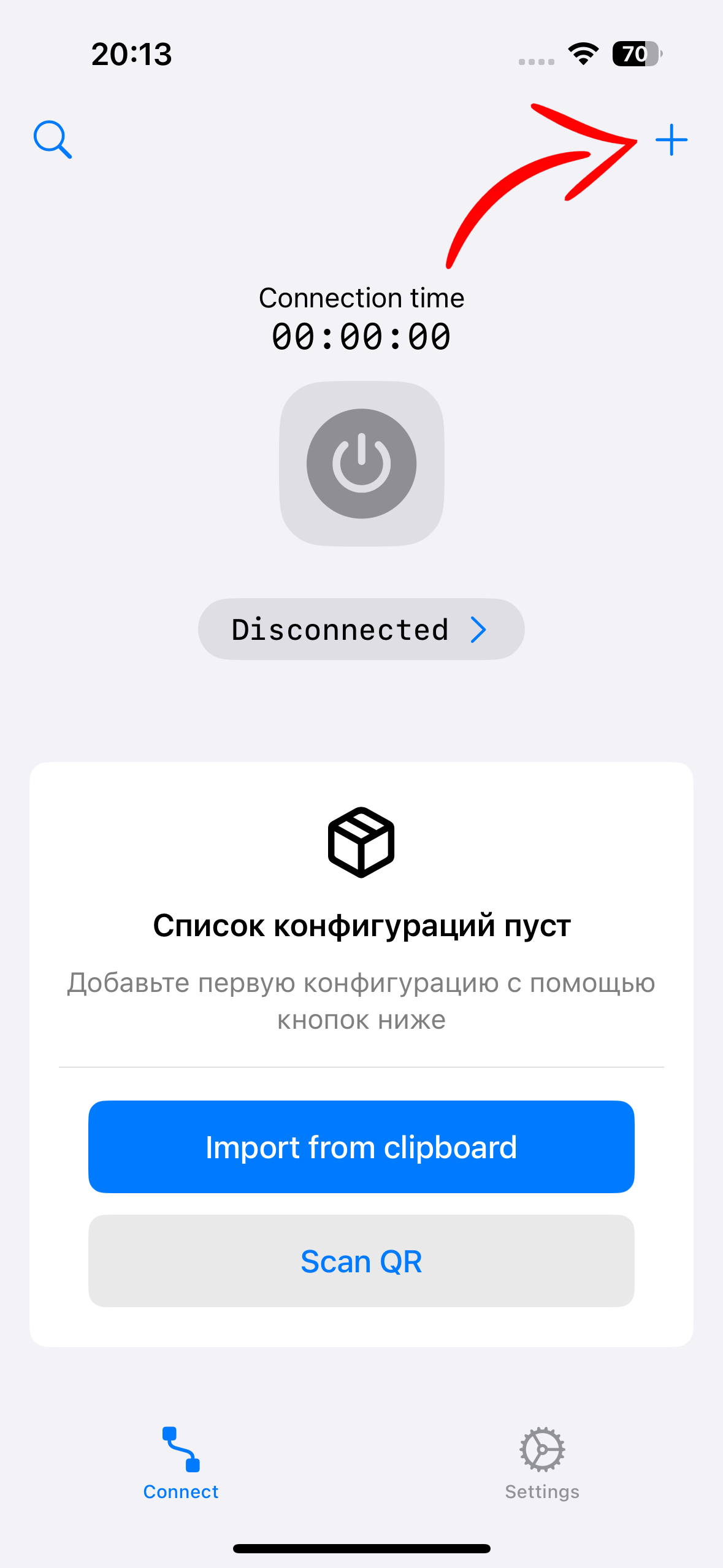
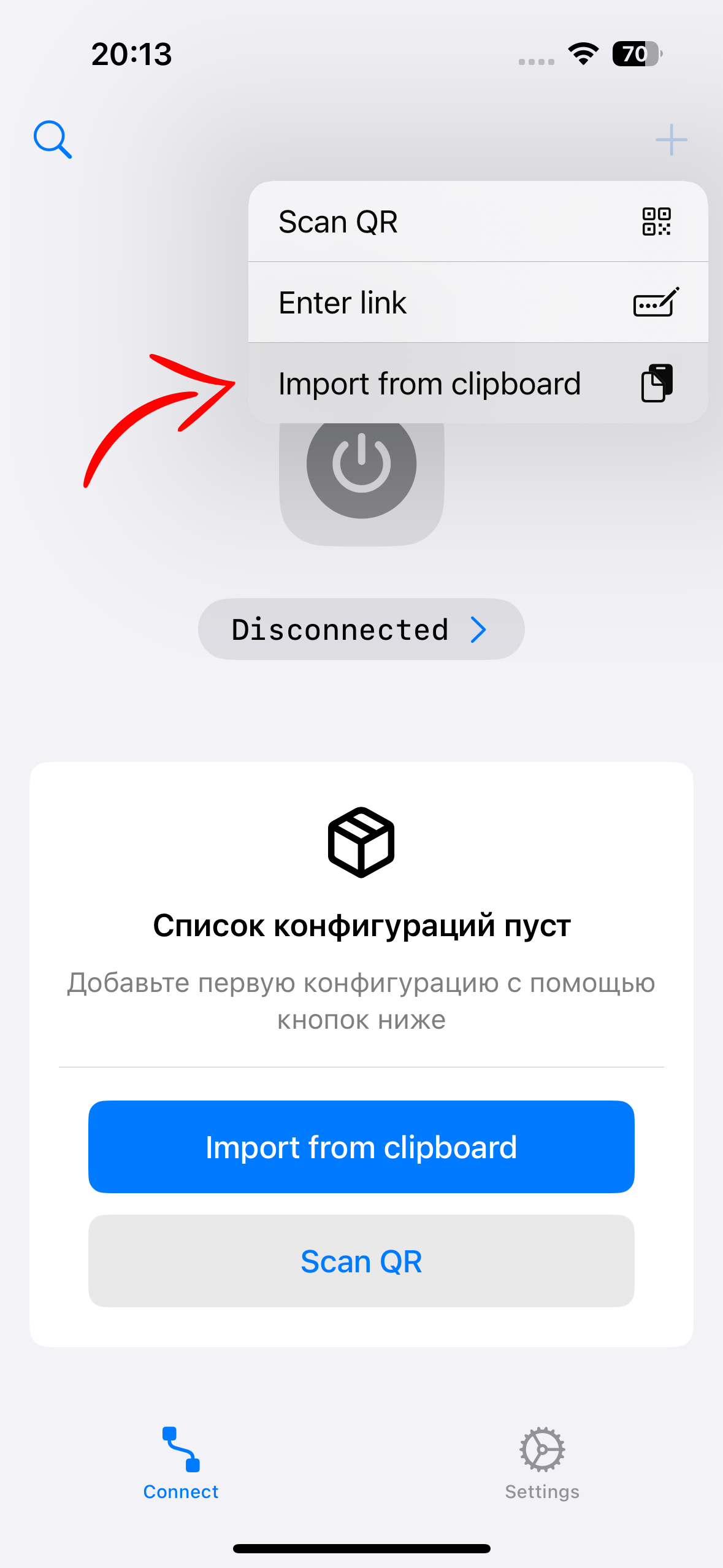
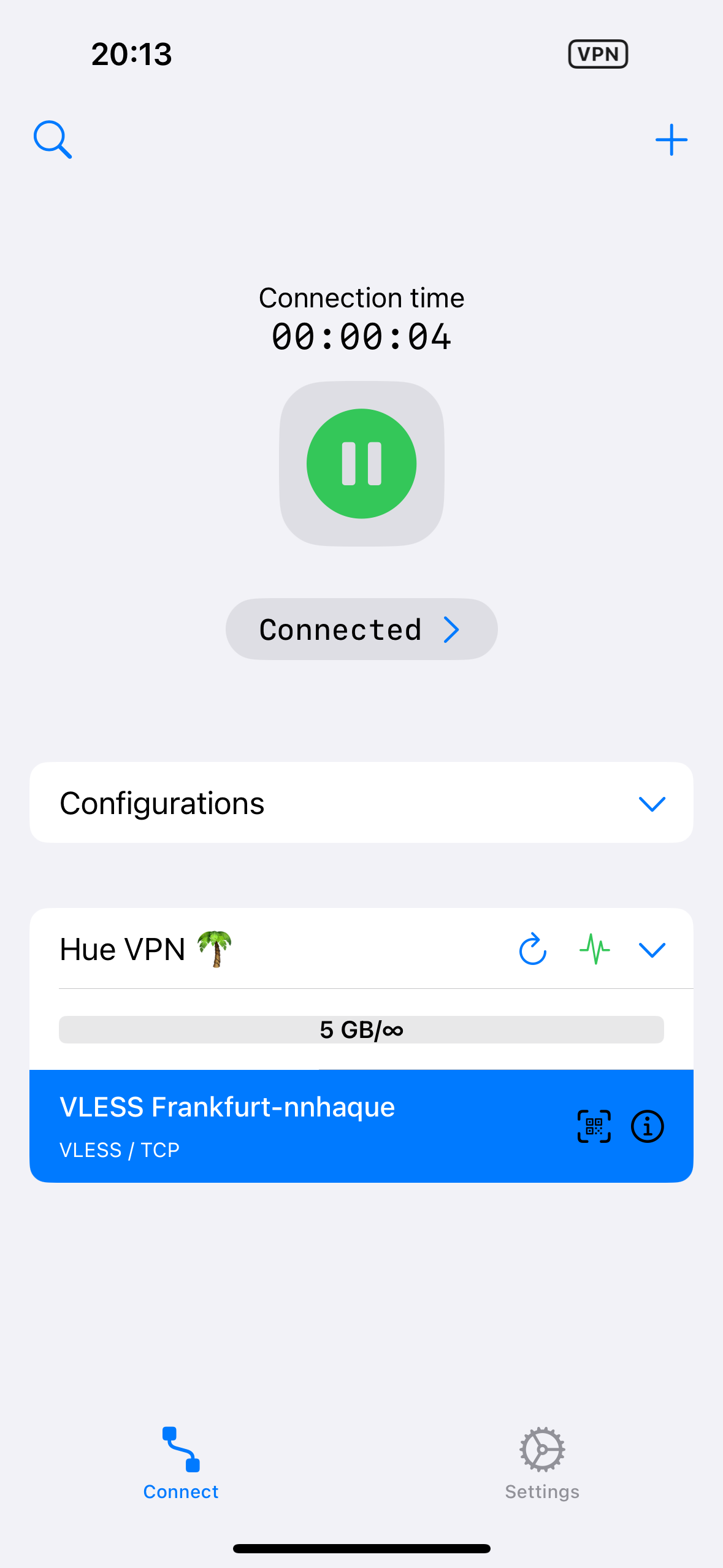
-
1Download v2RayTun from the App Store
-
2Copy your VLESS link
Copy the full VLESS URL from your Hue VPN dashboard to your clipboard.
-
3Tap + and import from clipboard or QR
Open v2RayTun and tap the + button. Select Import from clipboard to paste your VLESS link, or Scan QR code to scan from your dashboard.
-
4Allow VPN configuration
When prompted, tap Allow to let v2RayTun add a VPN configuration to iOS. Authenticate with Face ID or your passcode if required.
-
5Connect
Tap your imported server and hit the Connect button. The VPN icon will appear in your iOS status bar when connected.
Setup: V2BOX
V2BOX is a powerful v2ray client for iOS with support for VLESS, VMESS, Trojan and advanced routing rules.
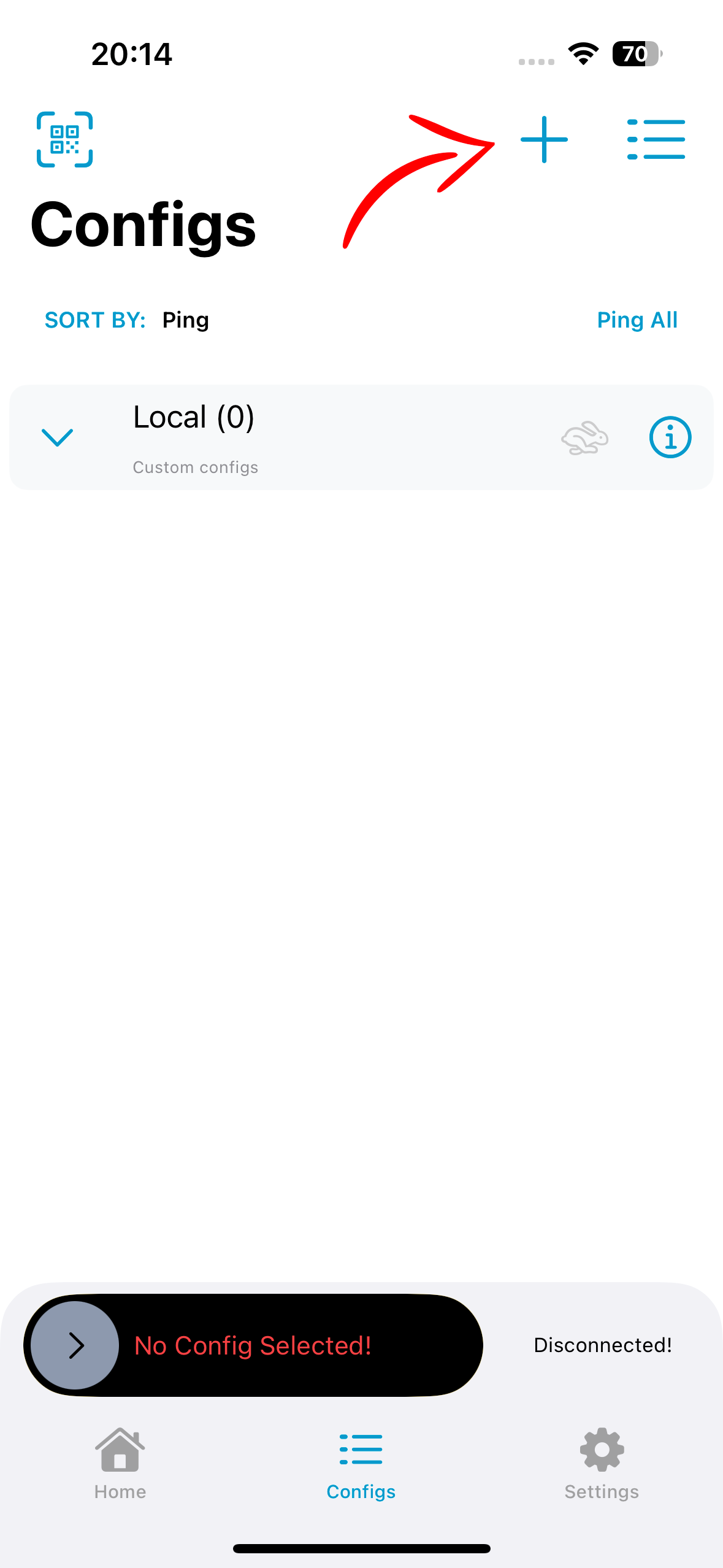
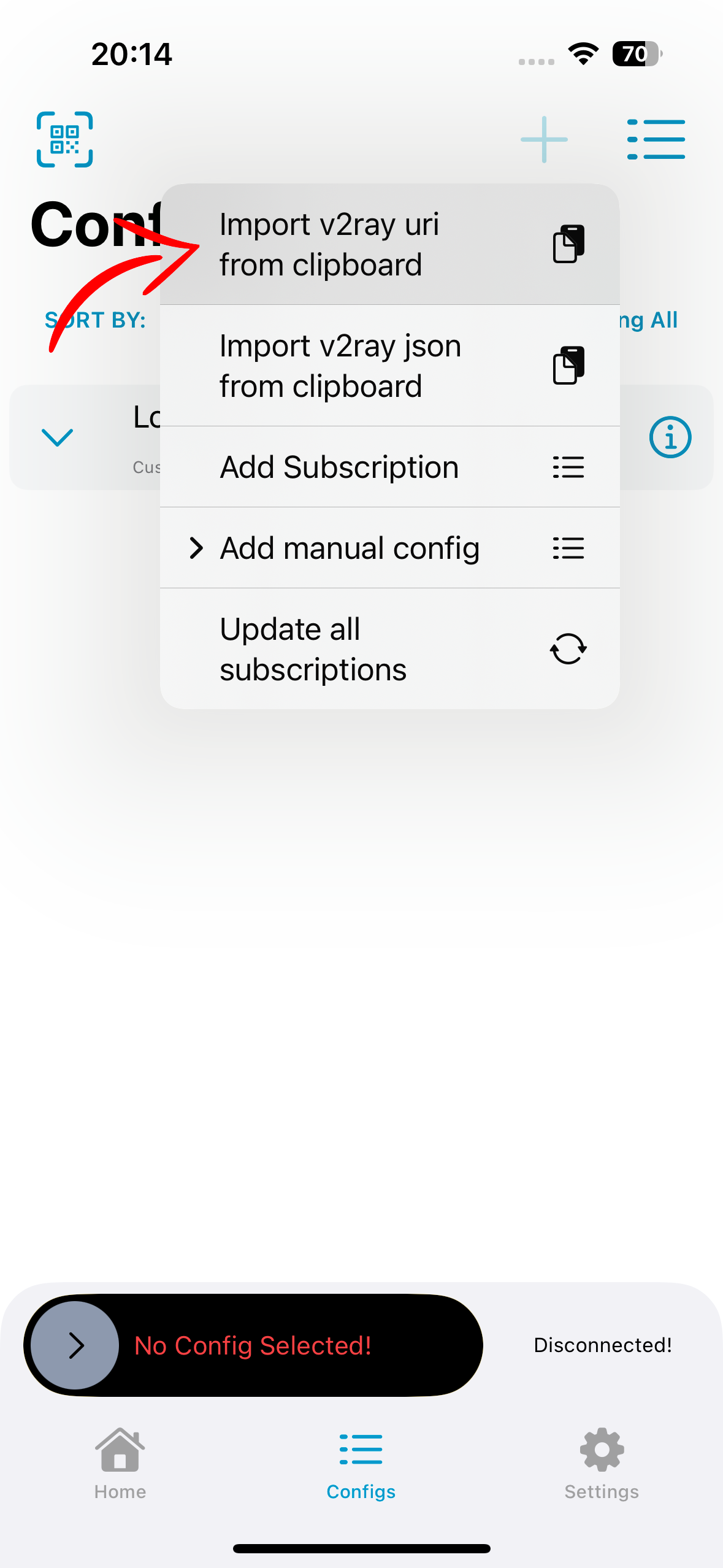
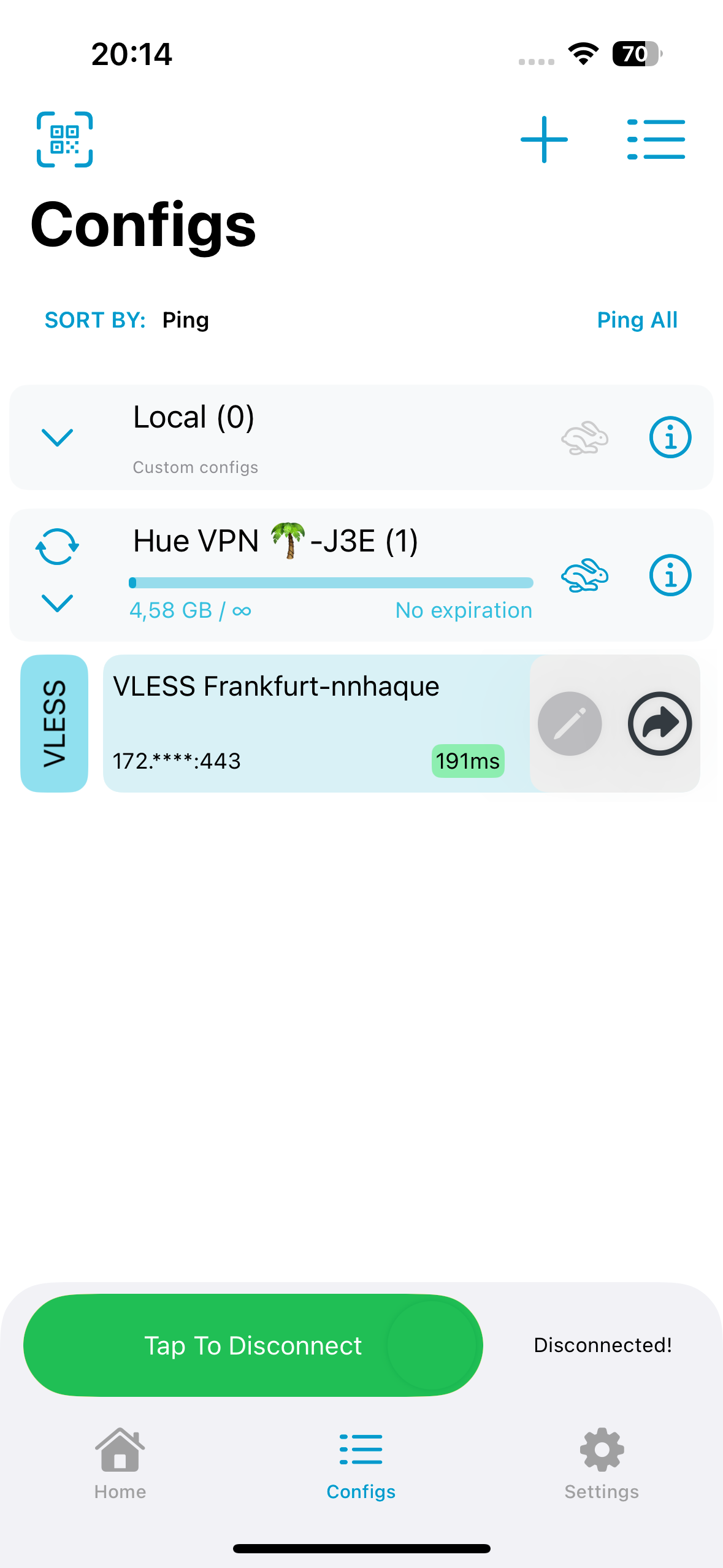
-
1Install v2box from the App Store
-
2Copy your VLESS link
Copy the full VLESS URL from your Hue VPN dashboard to your clipboard.
-
3Tap "Configs" → "+" → "Import from URL"
In v2box, go to the Configs tab. Tap + and choose Import from clipboard or Import from URL. Paste your VLESS link and confirm.
-
4Select the configuration and connect
Tap the imported configuration to select it, then hit the large Connect button on the home screen.
Setup: Happ
Happ is a minimal, fast proxy client designed for simplicity. Perfect if you want a no-frills connection experience.
-
1Download Happ from the App Store
-
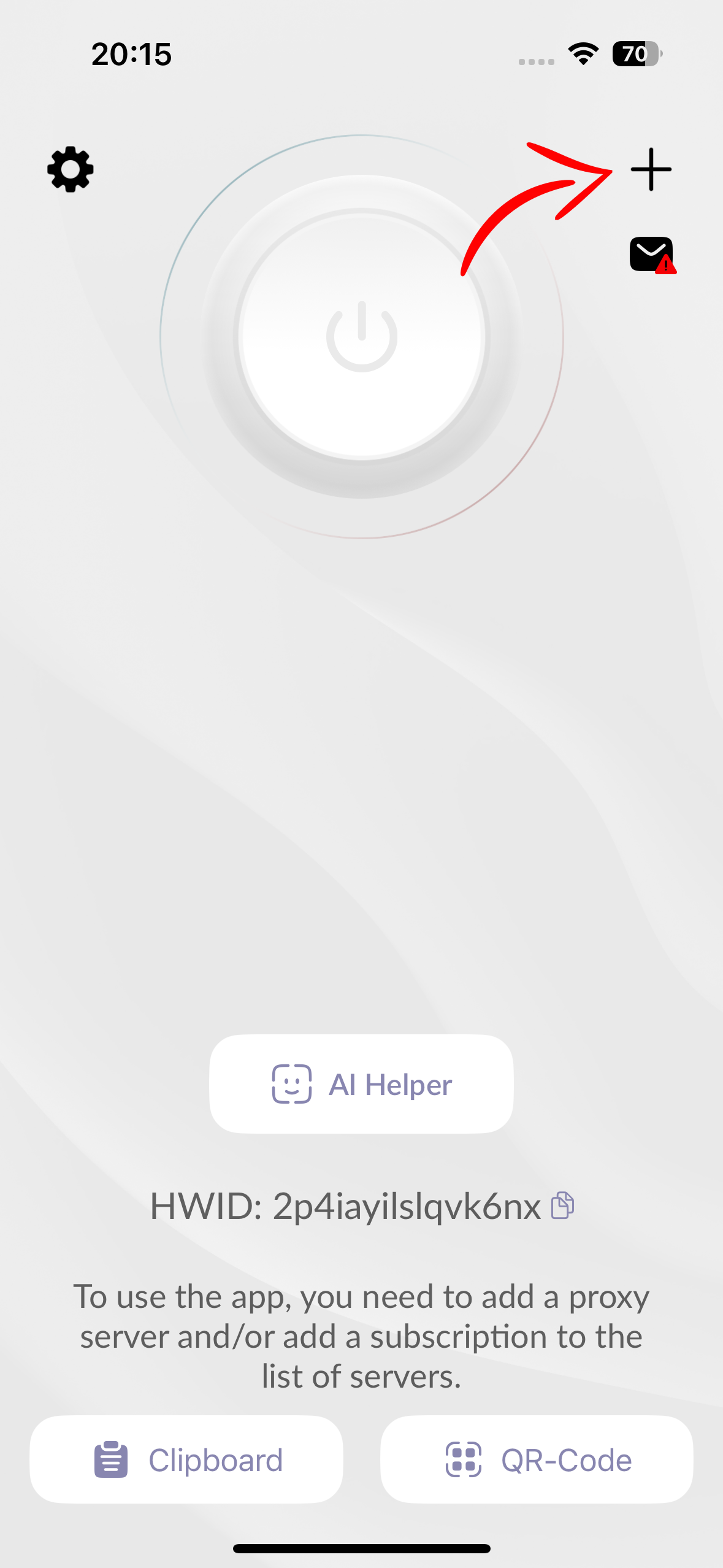
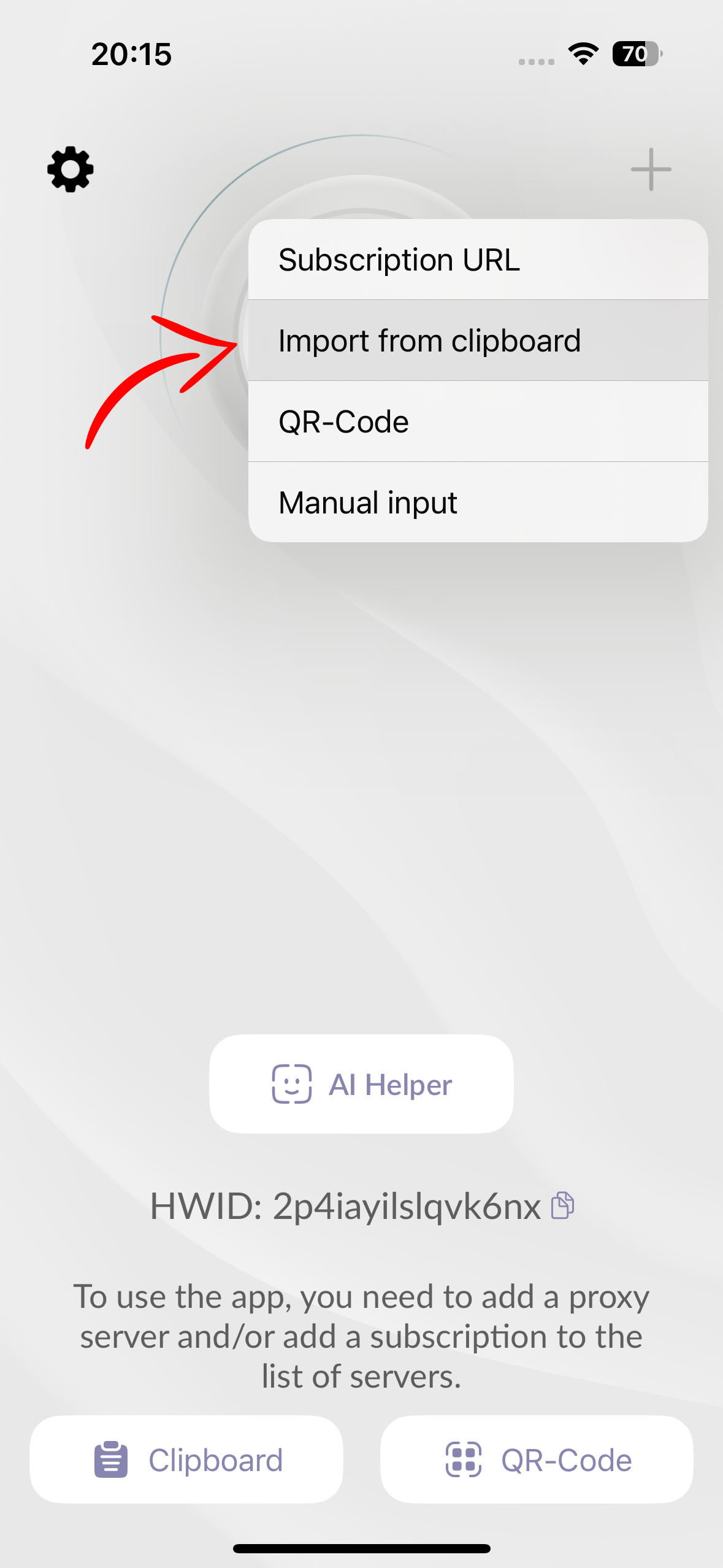
2Add a new proxy server
Open Happ and tap Add Proxy or the + icon. You can paste a VLESS URL or scan a QR code.
-
3Paste your VLESS link and save
Paste the full
vless://URL and tap Save or Import. The server details will be parsed automatically. -
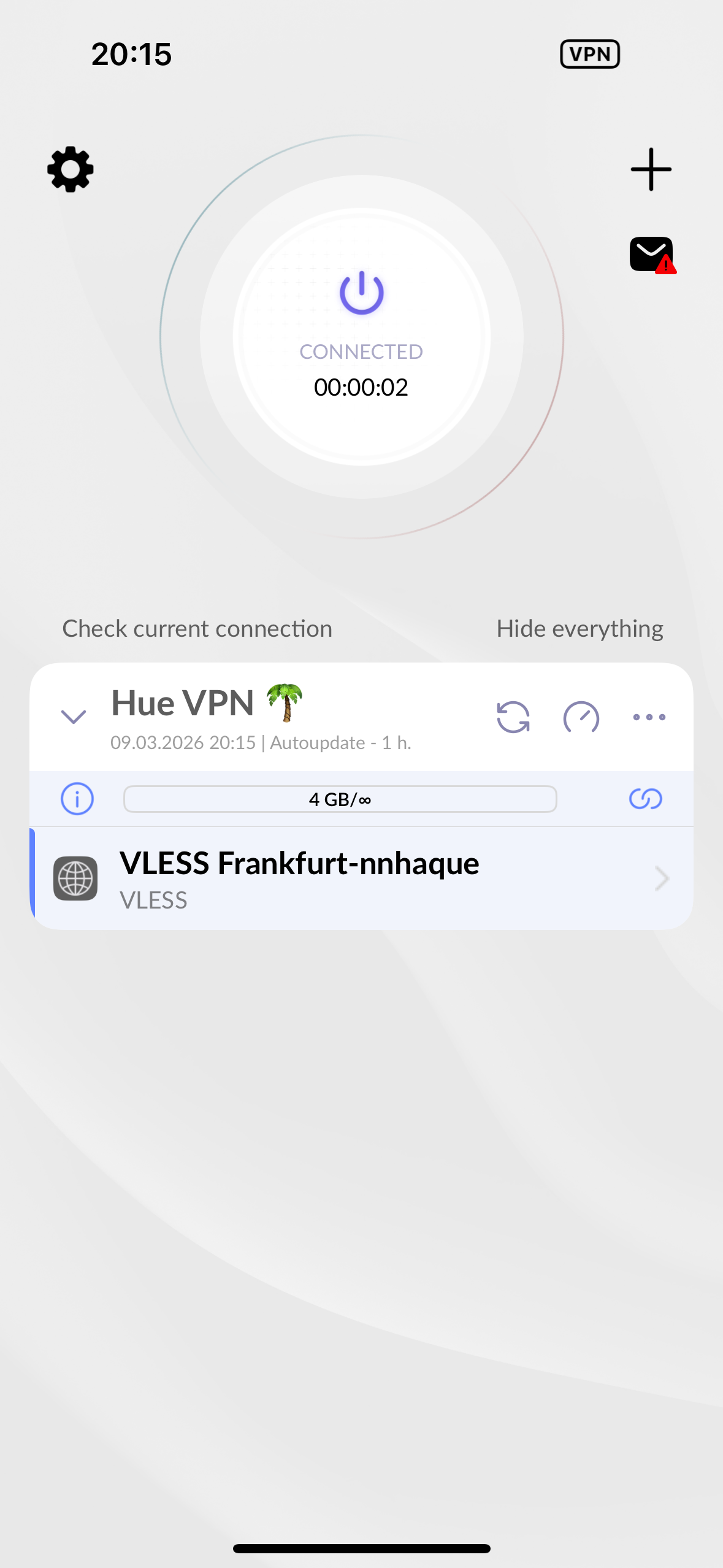
4Connect
Tap the server, then tap Connect. Approve the VPN configuration prompt and you're connected.
Manual Configuration
If you prefer to set up the connection manually without importing a link, use the parameters below:
| Field | Value |
|---|---|
| Protocol | VLESS |
| Address / Host | server.huevpn.com |
| Port | 443 |
| UUID / User ID | your-uuid-from-dashboard |
| Encryption | none |
| Transport | WebSocket (ws) |
| WS Path | /vless |
| WS Host | server.huevpn.com |
| TLS | Enabled |
| SNI | server.huevpn.com |
| Fingerprint | chrome |
| Allow Insecure | false |