Supported Apps
All four apps are available as native macOS apps. Most are available on the Mac App Store for the easiest installation experience.
Your VLESS Link
Get your VLESS link from the Hue VPN dashboard. Example:
https://sub.huevpn.com/4853285291/sub/mmlwxrmn8ouhkemj
Setup: Streisand
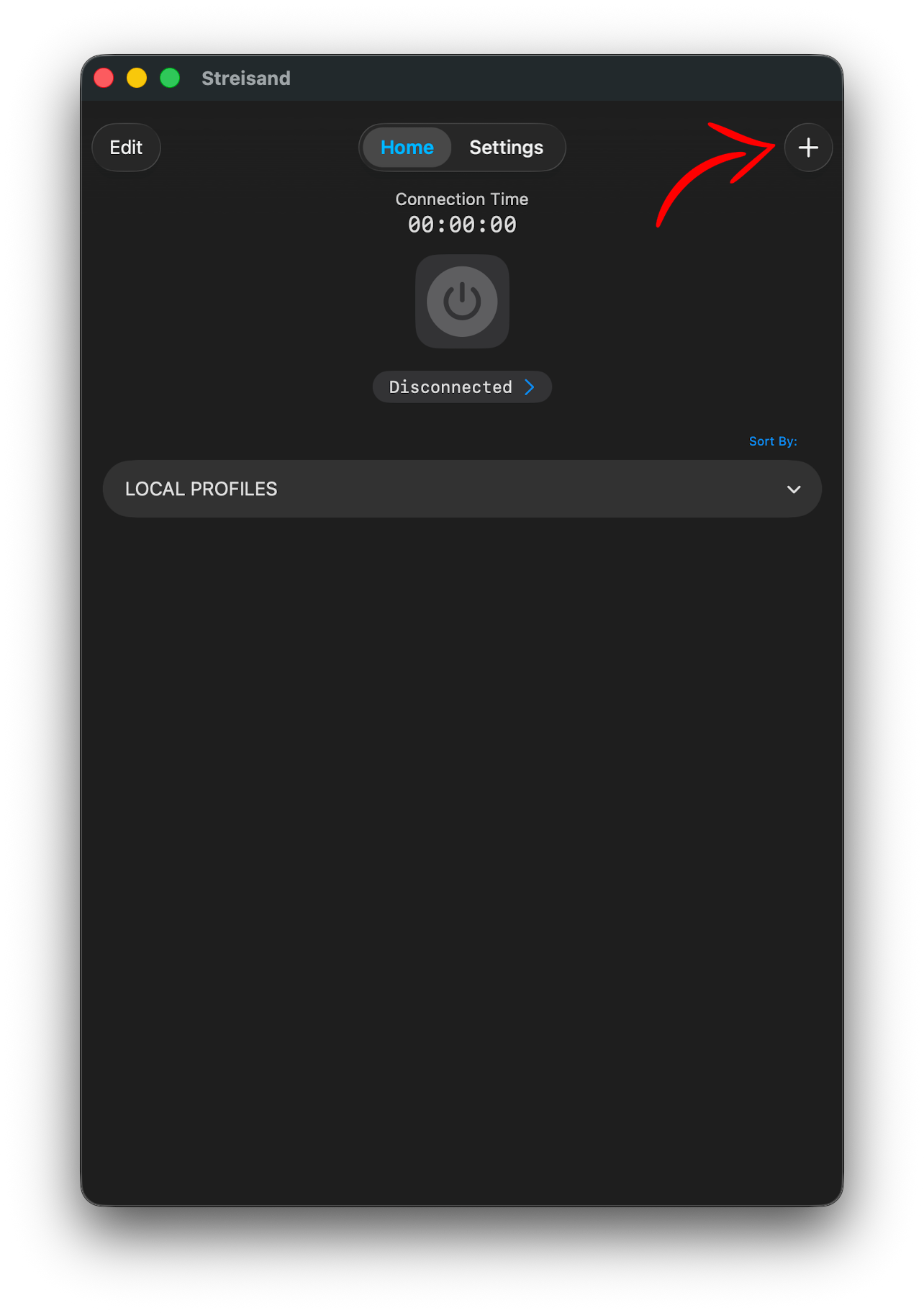
Streisand for macOS runs in the menu bar and integrates seamlessly with macOS system settings.
-
1Install Streisand from the Mac App Store
-
2Open Streisand from the menu bar
Click the Streisand icon in your macOS menu bar (top-right area). The proxy panel will open.
-
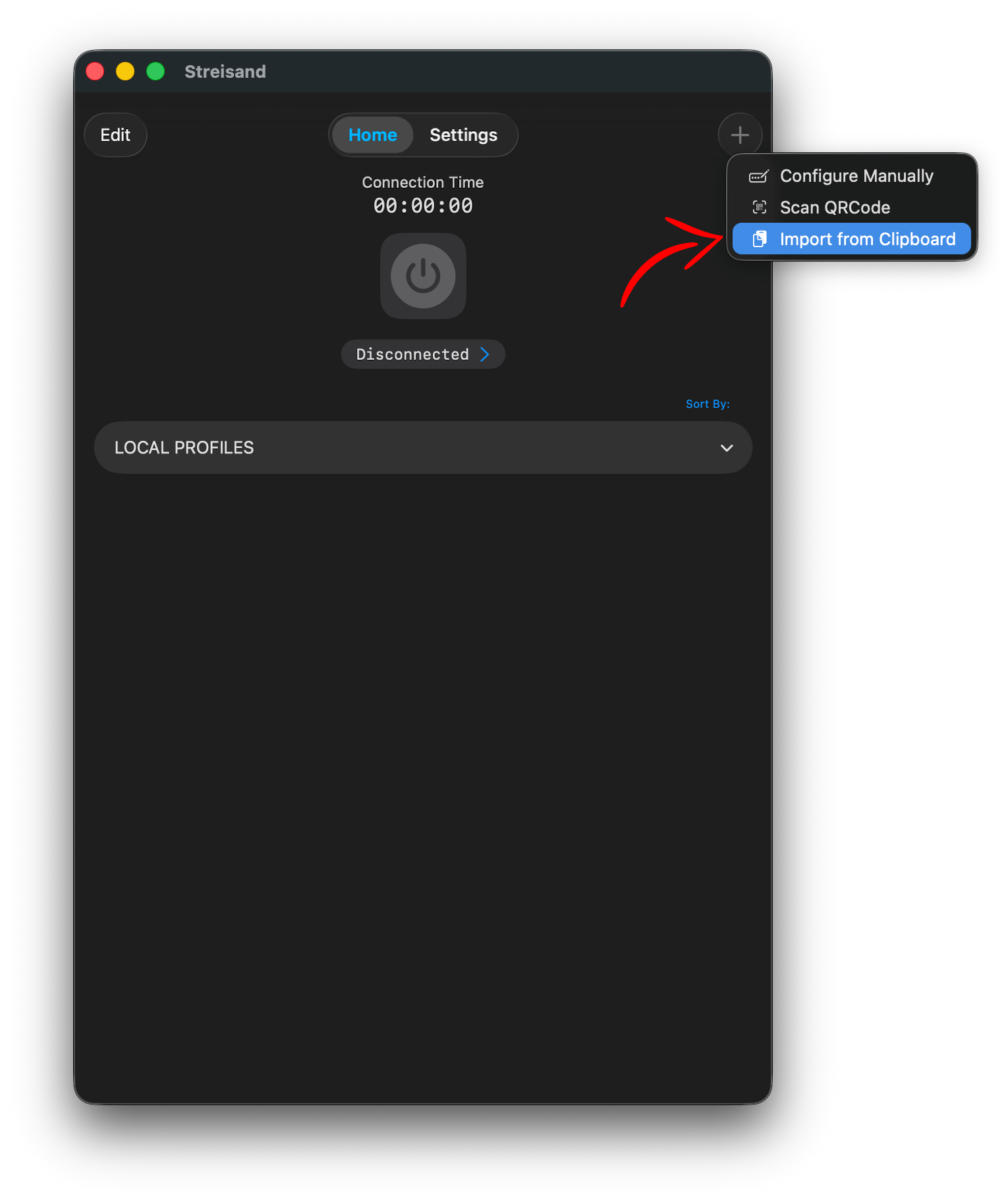
3Click the + button → Import from clipboard
With your VLESS link copied, click + and select "Import from clipboard". The server will be parsed and added automatically.
-
4Grant network extension permission
macOS will ask you to approve a Network Extension. Open System Settings → Privacy & Security and click Allow for Streisand if prompted.
-
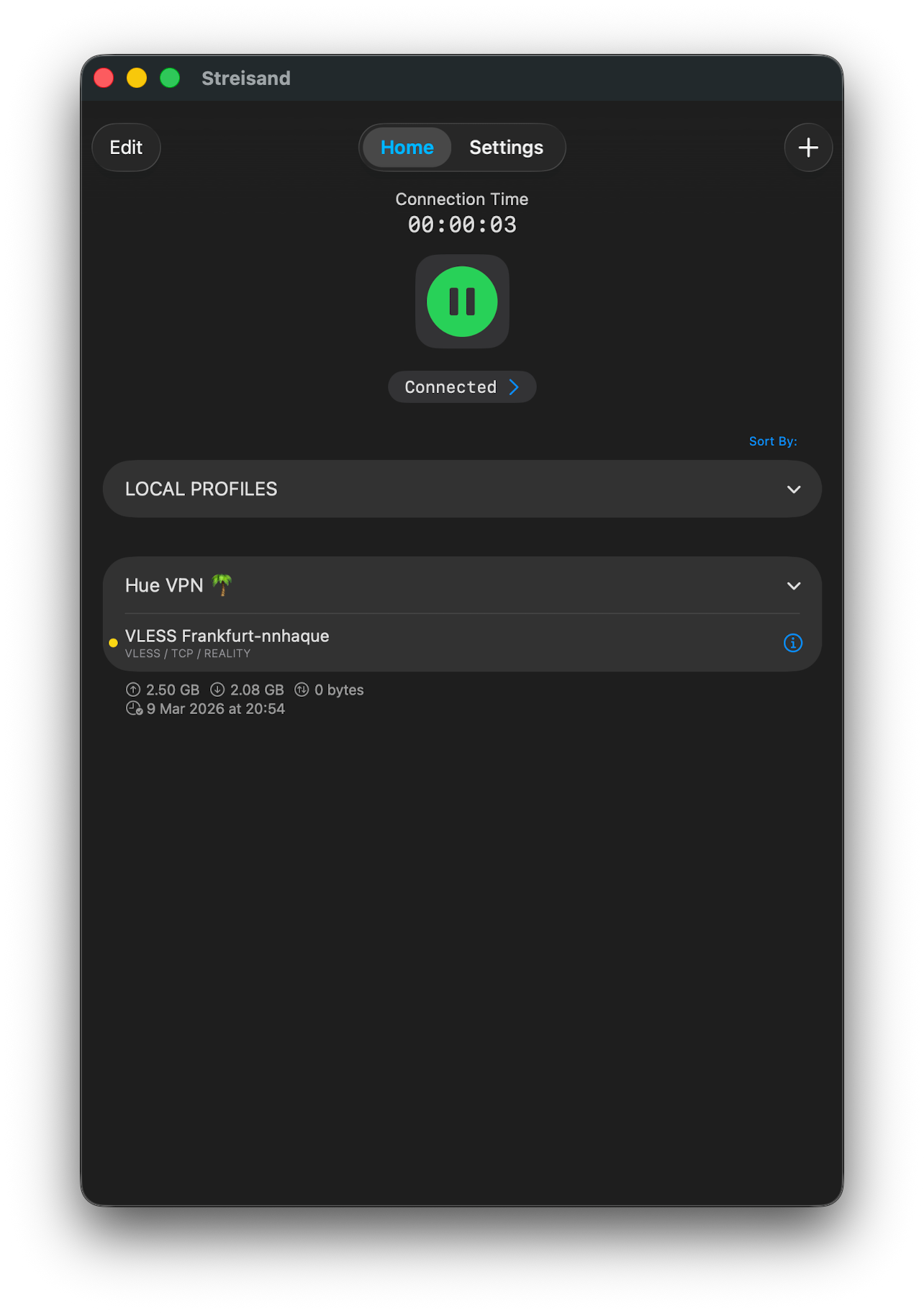
5Select the server and enable proxy
Click your HueVPN server and toggle the switch to On. The menu bar icon will indicate the connected state.
Setup: v2box
v2box for macOS is a full-featured v2ray client with system proxy integration and a clear configuration interface.
-
1Install v2box
-
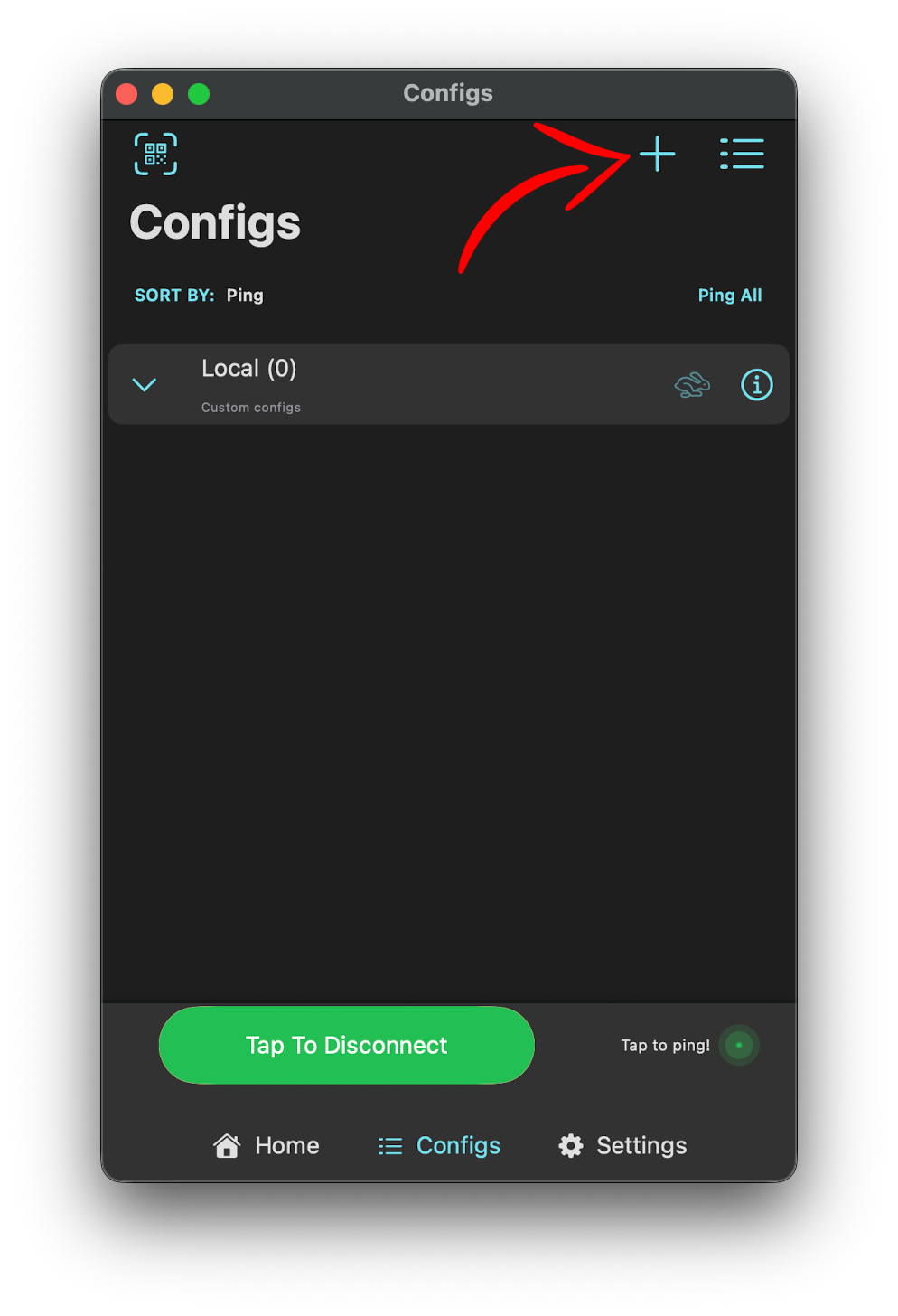
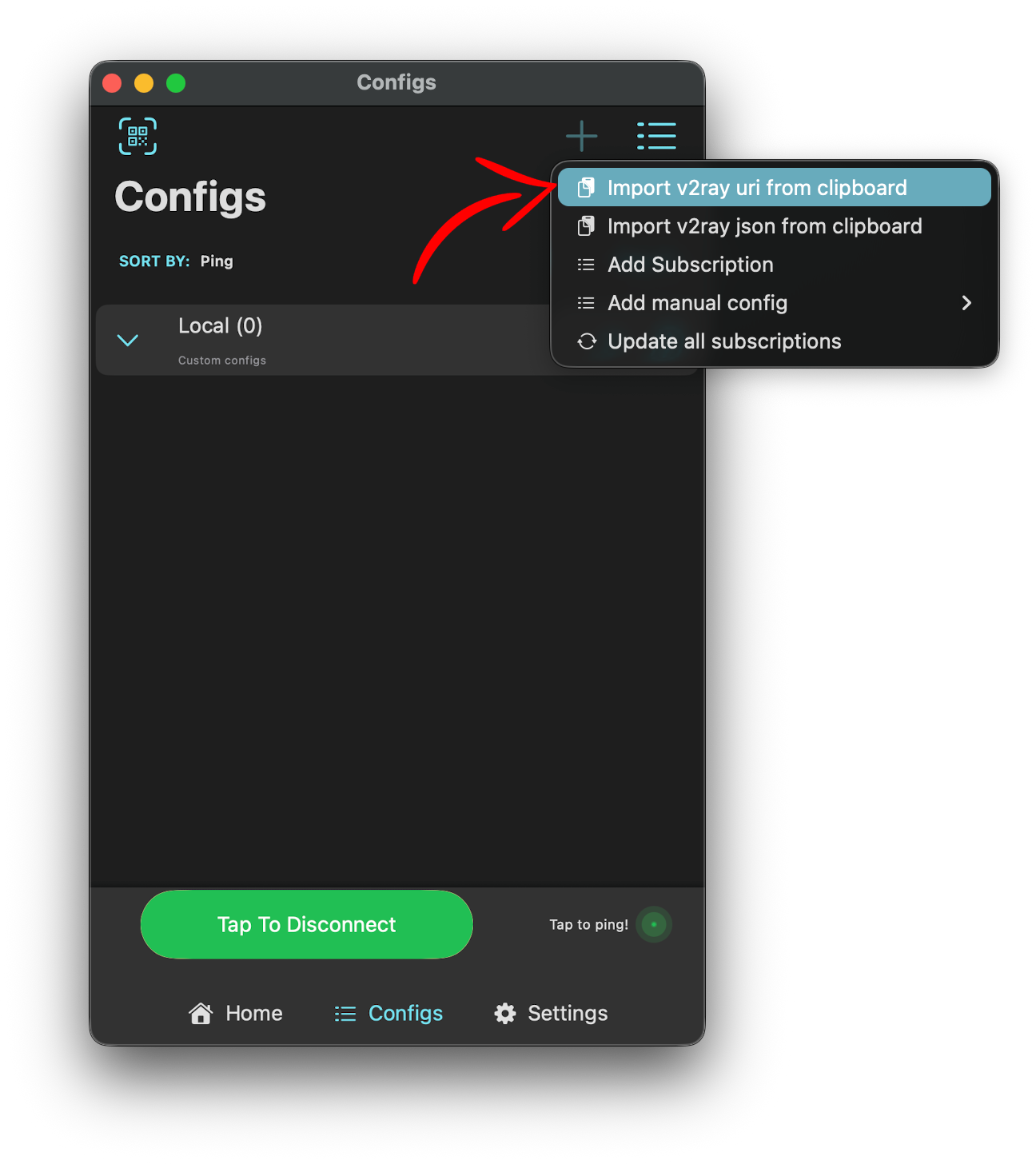
2Open v2box and go to Configs
Click the v2box menu bar icon and open the main window. Navigate to Configs in the left sidebar.
-
3Click + → Import from clipboard
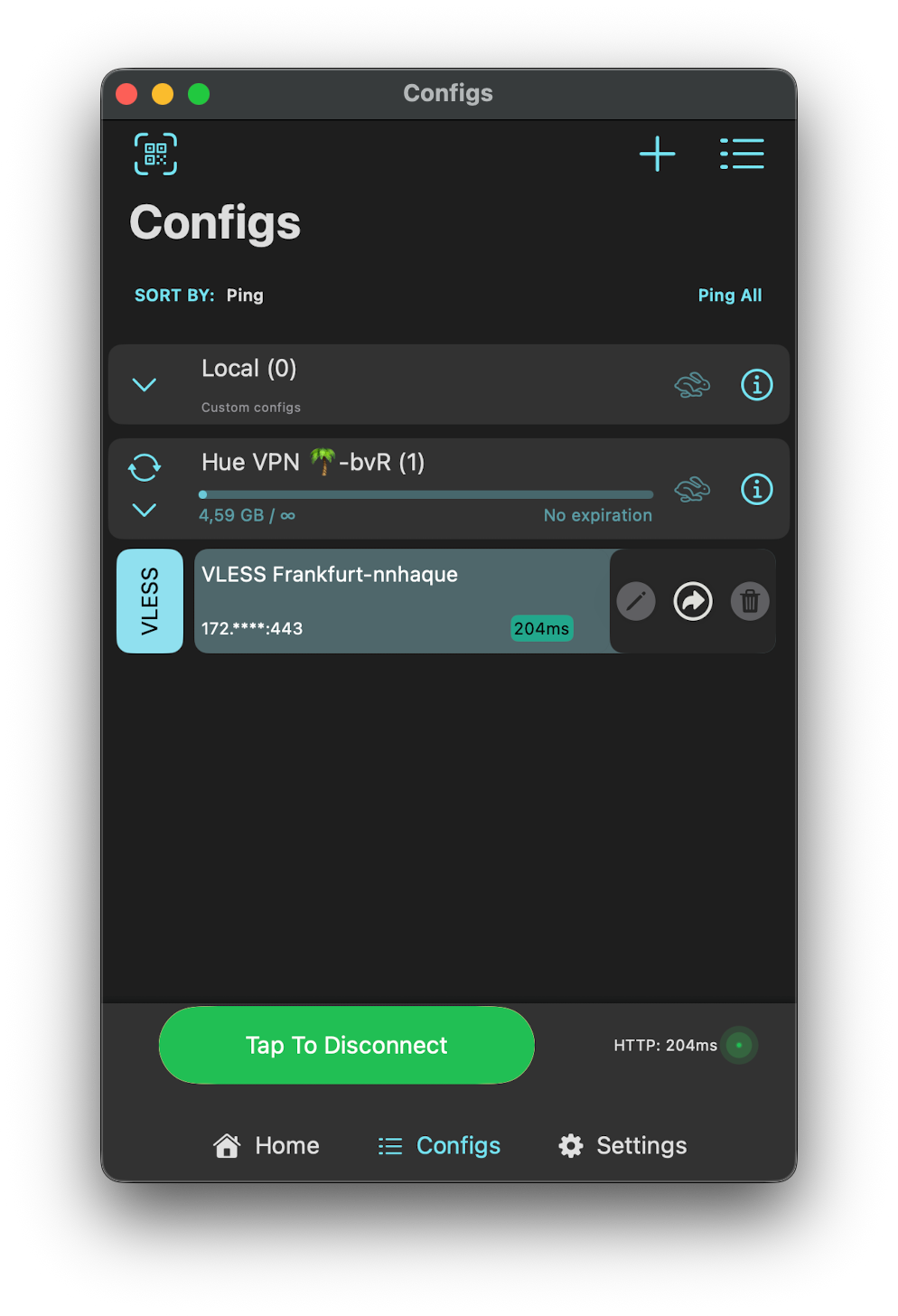
With your VLESS URL copied, click + and choose Import from clipboard. Verify the details and click Save.
-
4Connect
Select the configuration and click Connect. Accept any permission prompts from macOS.
Manual Configuration
| Field | Value |
|---|---|
| Protocol | VLESS |
| Address | server.huevpn.com |
| Port | 443 |
| UUID | your-uuid-from-dashboard |
| Encryption | none |
| Transport | WebSocket |
| WS Path | /vless |
| WS Host | server.huevpn.com |
| TLS | Enabled |
| SNI | server.huevpn.com |
| Fingerprint | chrome |
| Allow Insecure | false |